Set up single sign-on with Google Workspace
For administrators: make a custom SAML app for FairPro in the Google Admin console, prove your email domains and let people sign in with their Google account.
This article is for administrators who may change settings, such as the Tenant administrator. In Google Workspace you need to be a super administrator.
Before you start
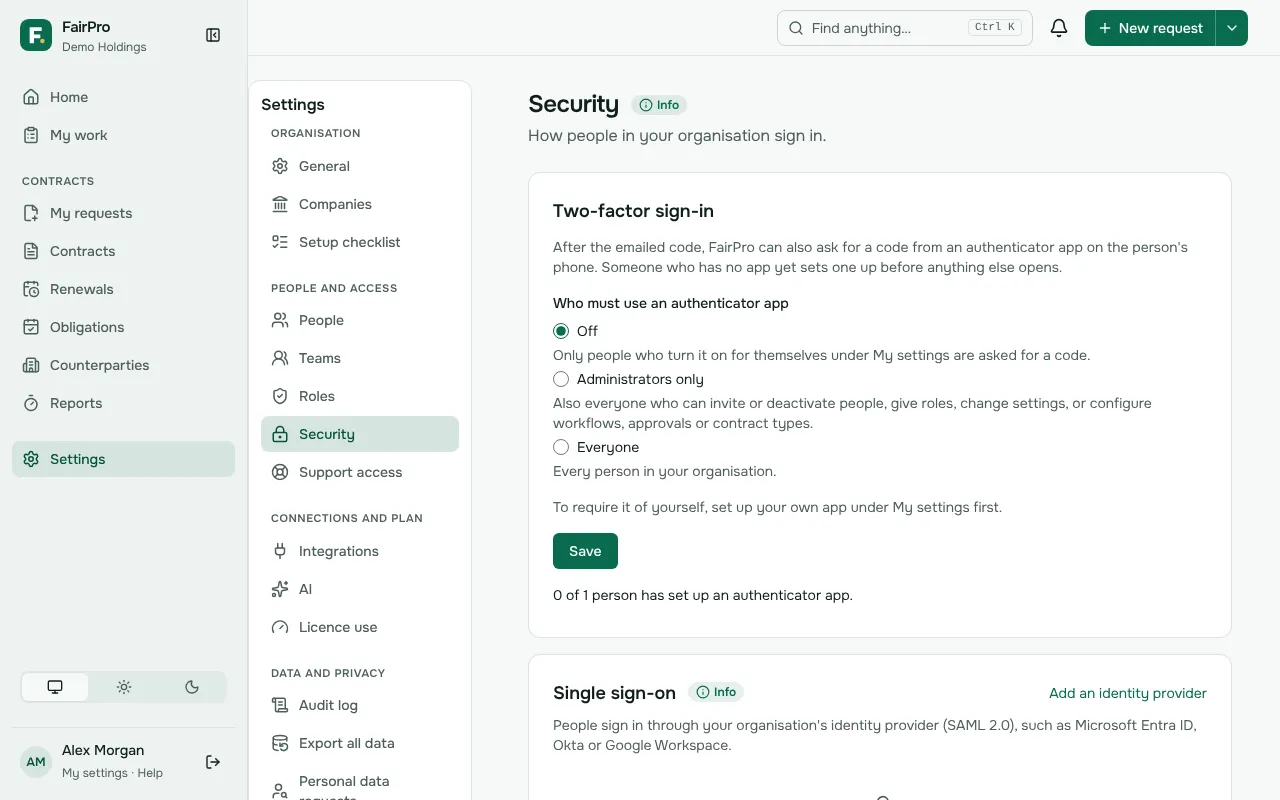
- In FairPro, open Security and choose Add an identity provider.
- Keep that page open. The panel What your identity provider needs shows the values you copy into Google: Entity ID (audience), Reply URL (ACS) and Email attribute.
If the page says single sign-on is not switched on for this site yet, FairPro support can tell you when it is.
Google Workspace signs people in to FairPro, but it cannot add or deactivate them: it provisions people only to apps from its own catalogue, not to a custom app. Invite people under People, or let FairPro add them on their first sign-in.
Make the application in Google
- In the Google Admin console, go to Apps, then Web and mobile apps.
- Choose Add app, then Add custom SAML app.
- Name it FairPro and choose Continue.
- On Google Identity Provider details, choose Download metadata and keep the file. Choose Continue.
- Paste FairPro’s Reply URL (ACS) into ACS URL and FairPro’s Entity ID (audience) into Entity ID.
- Set Name ID format to PERSISTENT and Name ID to Basic Information, then Primary email. Choose Continue.
- Under Attribute mapping, choose Add mapping. Choose Primary email as the Google directory attribute, and type
http://schemas.xmlsoap.org/ws/2005/05/identity/claims/emailaddressas the app attribute. This is FairPro’s Email attribute. - Choose Finish.
Google has no identifier that never changes to send as the NameID, so it sends the primary email. Changing the primary email of someone who uses FairPro stops their single sign-on to FairPro, so avoid it.
If FairPro’s page asks you to send the email address as the NameID, these settings already do.
Turn it on for people
- In the Admin console, open the FairPro app and choose User access.
- Choose ON for everyone, or turn it on only for some organisational units or groups.
- Choose Save. Google says a change can take up to 24 hours to apply.
FairPro accepts only sign-ins that start on its own sign-in page, so opening FairPro from the Google apps menu does not sign people in.
Give FairPro the metadata
- Open the metadata file you downloaded in a text editor and copy all of it.
- Back in FairPro, fill in Name, such as Google Workspace, and your Email domains, such as example.com.au.
- Paste the file into Or the metadata XML and choose Add identity provider.
Google gives the metadata as a file, not an address, so FairPro does not see Google’s new certificate when the old one expires. Before it does, add the new metadata: disconnect the identity provider in FairPro and add it again.
Prove your domains and connect
- FairPro shows a TXT record. Add it to the DNS of each email domain.
- Choose Check DNS records. A new record can take a while to show up.
- When the domains are proved, choose Connect. Where there is no Connect, FairPro connects it within a few minutes; refresh the page to see.
Test it
- In FairPro, invite people under People with the same email address, or choose Add people on first sign-in on the identity provider’s page. They start with no role and see nothing until you give them one.
- Test it yourself: on FairPro’s sign-in page, type your work email and choose Sign in with single sign-on.
- When it works, choose Require it on the identity provider’s page if everyone at those domains should sign in through Google. Administrators can still sign in with their password by adding ?method=password to the sign-in page’s address, so a broken identity provider cannot lock you out.
People who sign in through Google are not asked for a FairPro authenticator code or passkey. Turn on 2-Step Verification in Google Workspace instead.