Give people access
For administrators: invite people, give them roles limited to the right companies, departments and values, and deactivate them when they leave.
Inviting people
This article is for administrators. In the default roles, the Tenant administrator invites people, gives roles and deactivates people.
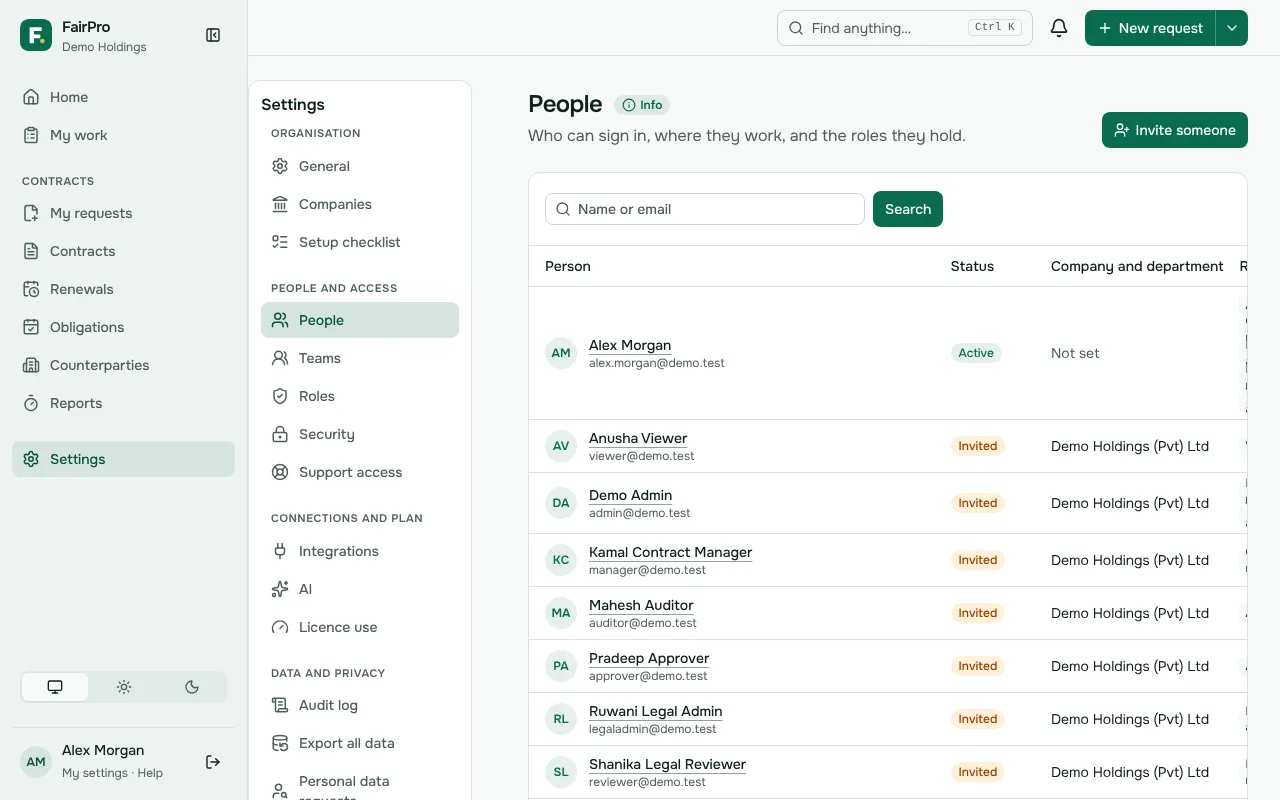
- Open People and choose Invite someone.
- Type their work Email and Name. If you have set them up, choose their Company and Department.
- Choose Invite.
FairPro emails them a temporary password. At their first sign-in they choose their own password and set up an authenticator app or a passkey. If they have not signed in yet, open their page and choose Send invitation again.
A new person has no roles, so they can see nothing yet. Give them a role next.
Roles and their scopes
A role is a set of permissions, such as Approver. People can do only what their roles allow. To give someone a role:
- Open their page under People.
- Under Give a role, choose the Role.
- To limit it, tick companies under Only for these companies (none ticked: all) or departments under Only for these departments (none ticked: all). Tick none for the whole organisation.
- To cap it, fill in Value limit and Limit currency, such as 1000000 and AUD. Leave both empty for no limit.
- Choose Assign role.
A value limit covers a contract at or below the limit. It does not cover a contract whose value is not known yet, or one in another currency, because FairPro does not convert currencies. A contract with no value, such as an NDA, is always covered.
A person with several roles can do what any one of them allows. Roles never add up: one role’s company or value limit does not stretch another’s. You cannot yet limit a role to a contract type.
To take a role away, choose Remove role beside it.
Default roles
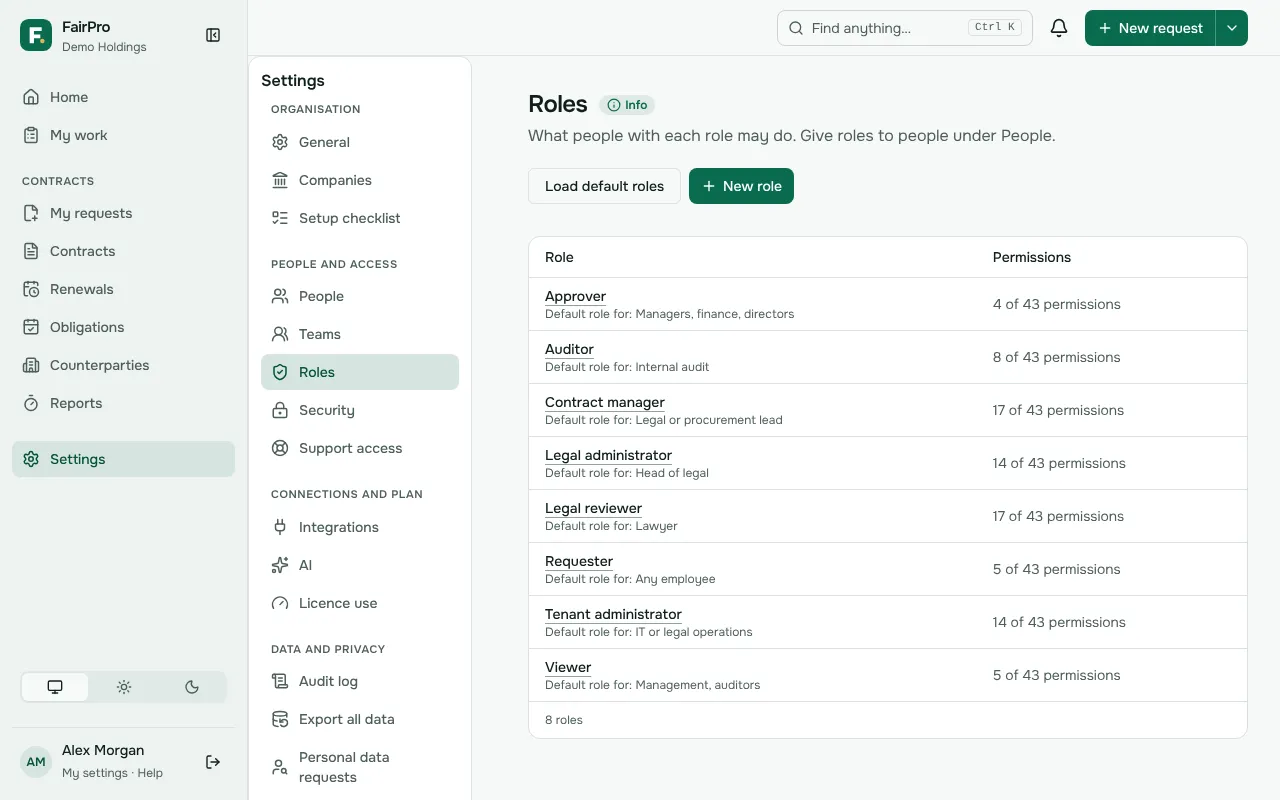
Open Roles and choose Load default roles to get the usual set for a legal team. Roles you already have are kept as they are. The defaults are Tenant administrator, Legal administrator, Contract manager, Legal reviewer, Approver, Requester, Viewer and Auditor.
To change a role, open it, tick or untick its permissions and save. The change applies at once to everyone with it. To make your own, choose New role, give it a Name, and start from no permissions or a copy of another role.
Give each role only what the job needs. The Tenant administrator runs people and settings, but cannot see contracts unless you also give a role that can.
Confidential contracts
A contract marked confidential is hidden from most people. Only its participants and people with the View confidential permission can see it. Participants are its owner, its requester and the person assigned to draft it. People who were only copied in are taken off when it is made confidential.
No default role has View confidential. Give it on purpose, in a role you trust with sensitive contracts.
Why someone cannot see a contract
Someone sees a contract when one of their roles lets them view contracts of its company, department and value, or when they are named on it. If they cannot see one, check these:
- No view permission: none of their roles can view contracts. A Requester sees only contracts they are named on.
- Wrong scope: their role is limited to other companies or departments.
- Value limit: the contract is above their limit, in another currency, or its value is not known yet.
- Confidential: the contract is confidential and none of their roles has View confidential.
- Not signed in: they have not accepted their invitation yet, or they have been deactivated.
Deactivating someone
When someone leaves, deactivate them.
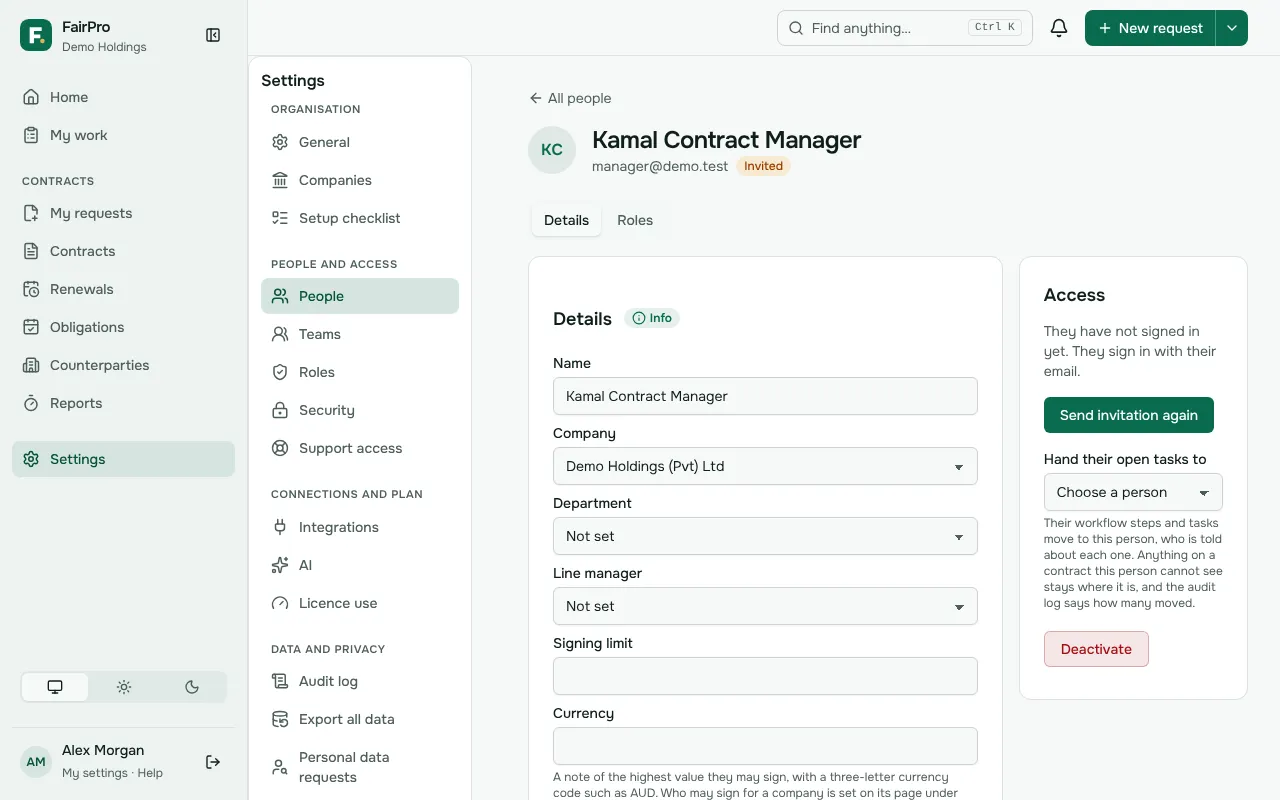
- Open their page under People.
- Under Access, choose Deactivate.
They can no longer sign in, and they are signed out everywhere at once. Their history and audit trail are kept. Their calendar feed and any connected AI apps stop working too.
You cannot deactivate yourself. FairPro also refuses if it would leave nobody who can give roles across the whole organisation.
If your organisation asks administrators for an authenticator code, set that up under Security.