Sign in to FairPro
Sign in for the first time, set up a passkey or an authenticator app, and reset a forgotten password.
Your first sign-in
Your administrator invites you, and FairPro emails you a temporary password. Open FairPro at app.fairpro.com.au.
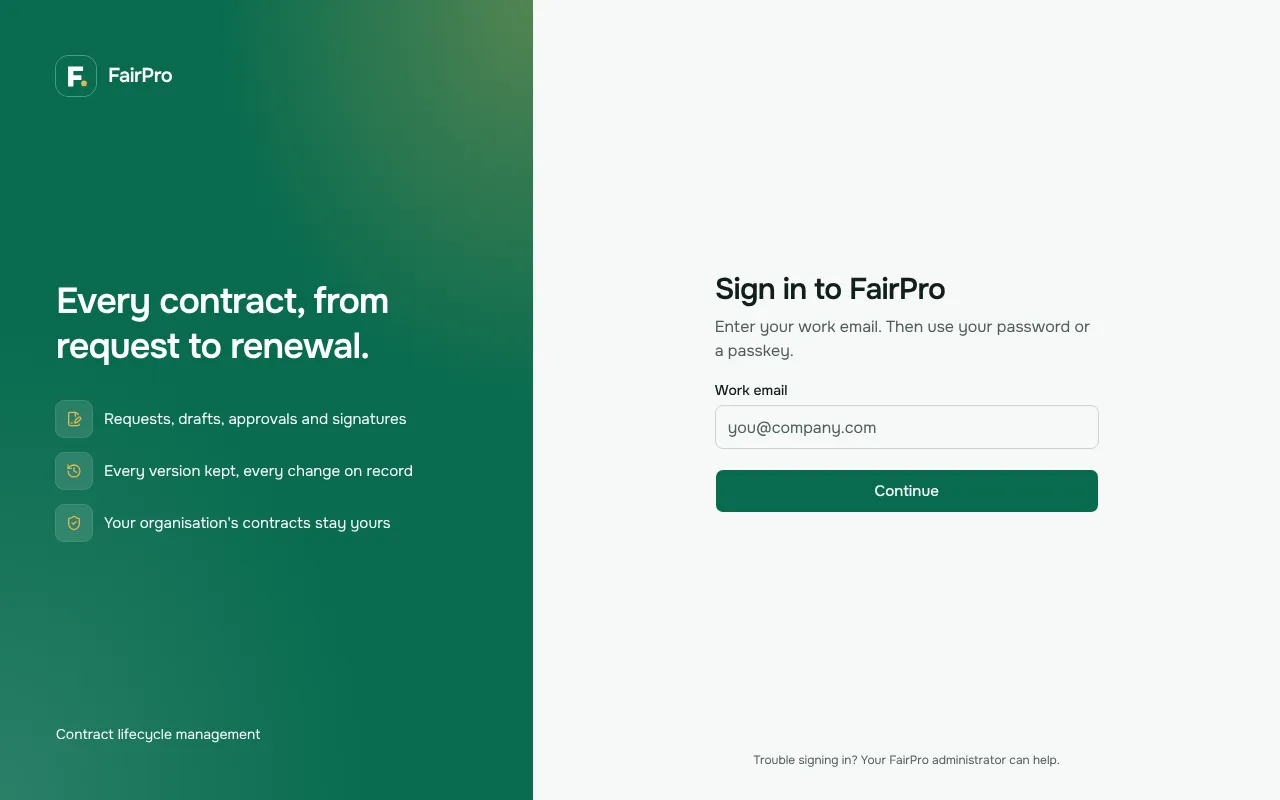
- Type your Work email and choose Continue.
- Type the temporary password from the email and choose Sign in.
- Under New password, choose your own password and choose Set password and continue.
- Set up a second way to sign in. FairPro asks everyone for more than a password, so you choose a passkey or an authenticator app before you go on.
If your organisation uses single sign-on, FairPro takes you to your organisation’s sign-in page after step 1 instead. Sign in there as you do for your other work apps.
A passkey or an authenticator app
On Set up a second way to sign in, choose one of the two. It takes a minute.
A passkey lets you sign in with your fingerprint, face or device PIN, with no password to type. It is the one we recommend. Choose Create a passkey and follow what your browser or phone asks.
An authenticator app shows a code to type after your password.
- Open an authenticator app on your phone, such as Microsoft Authenticator or Google Authenticator.
- In Name for this app, type something that tells your apps apart, such as Work phone.
- Add an account in the app and scan the QR code. If you cannot scan it, type the key shown under it into the app instead.
- Type the 6-digit code the app shows and choose Confirm and turn on.
Signing in each day
- Type your Work email and choose Continue. FairPro remembers the address you last used on this device.
- Sign in with your passkey, or type your Password and choose Sign in.
- If you use an authenticator app, type the 6-digit code it shows now and choose Continue.
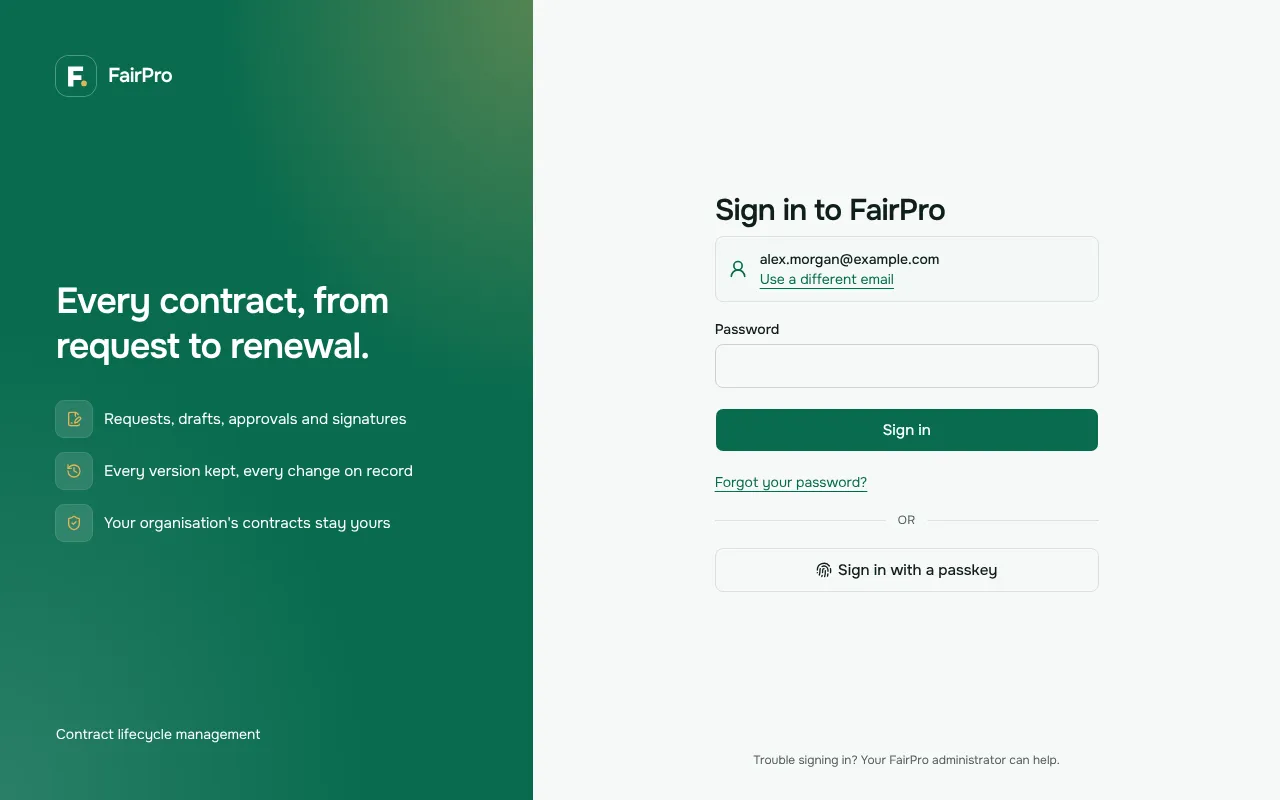
A passkey on another device still works: your browser can show a QR code to scan with your phone. To sign in as someone else, choose Use a different email.
Forgot your password
- On the sign-in page, choose Forgot your password?
- Type your Work email and choose Email me a code.
- Type the 6-digit code from the email and a New password, then choose Set new password.
Use the code in the newest email. If it does not arrive, choose Send a new code. If you were invited but never signed in, FairPro emails you a new temporary password instead.
Managing your passkeys and app
Open My settings and the Sign-in and security tab.
- To add a passkey, type a Name for this passkey if asked, such as work laptop, and choose Add a passkey on this device.
- To remove one, choose Remove with its name beside it.
- To add or remove an authenticator app, use Two-factor sign-in on the same tab.
Add a second passkey on another device, such as your phone, so losing one does not lock you out. FairPro always keeps at least one passkey or app, and emails you when a passkey is added or removed. Lost your phone or passkey? Ask your FairPro administrator to reset your sign-in.