Find what is waiting on you
Use the home page and My work to see approvals, tasks and renewal decisions that are yours, take work from a queue and set tasks for others.
The home page
The home page shows what needs you first, then a summary of your contracts. Everything on it counts only contracts you may see.
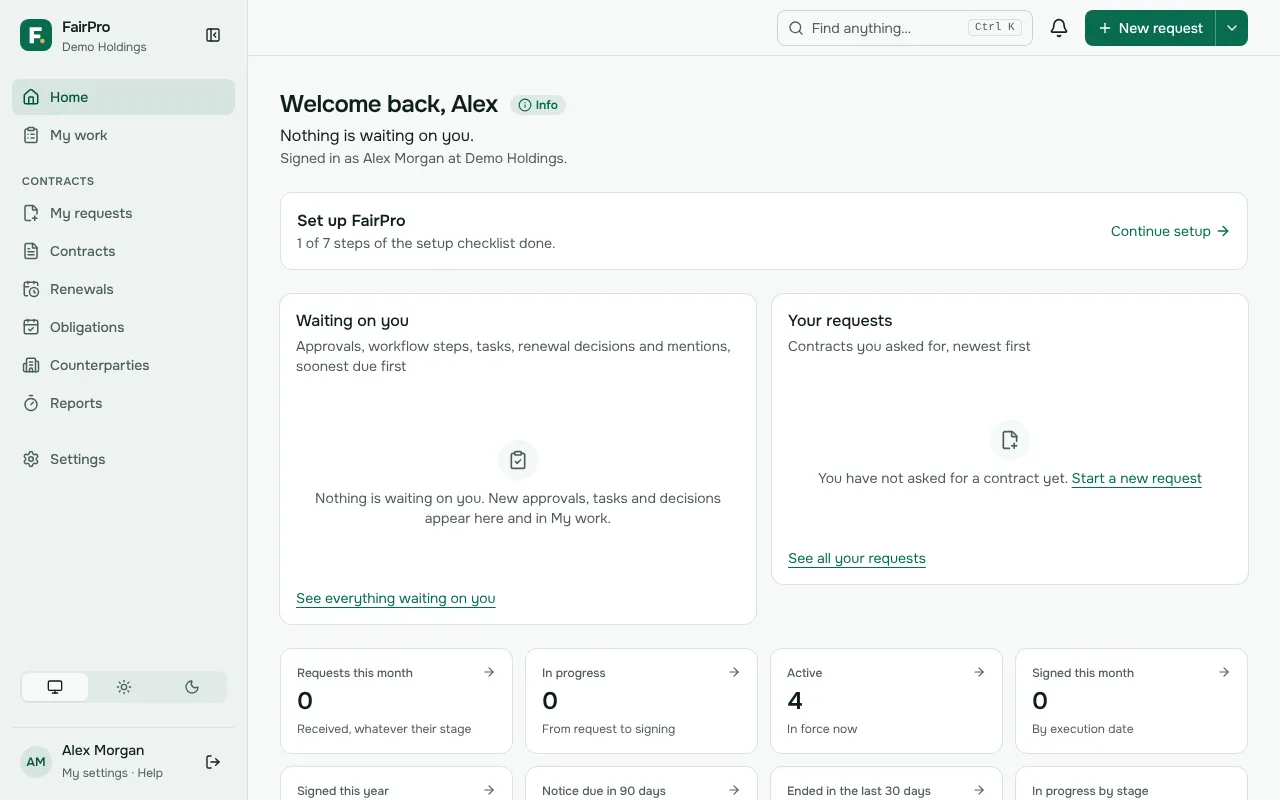
- Waiting on you lists approvals, workflow steps, tasks, renewal decisions and mentions that are yours now.
- Your requests lists the contracts you asked for, newest first. Choose Start a new request to ask for another.
- Coming up lists notice deadlines and end dates in the next 30 days, soonest first.
- Recently updated lists the contracts changed most recently.
- Your figures, such as requests this month and contracts signed this year, each open the list they count.
Administrators also see Set up FairPro until the setup checklist is done. Choose Continue setup to go on with it.
My work
Open My work from the sidebar. It lists everything waiting on you in one place.
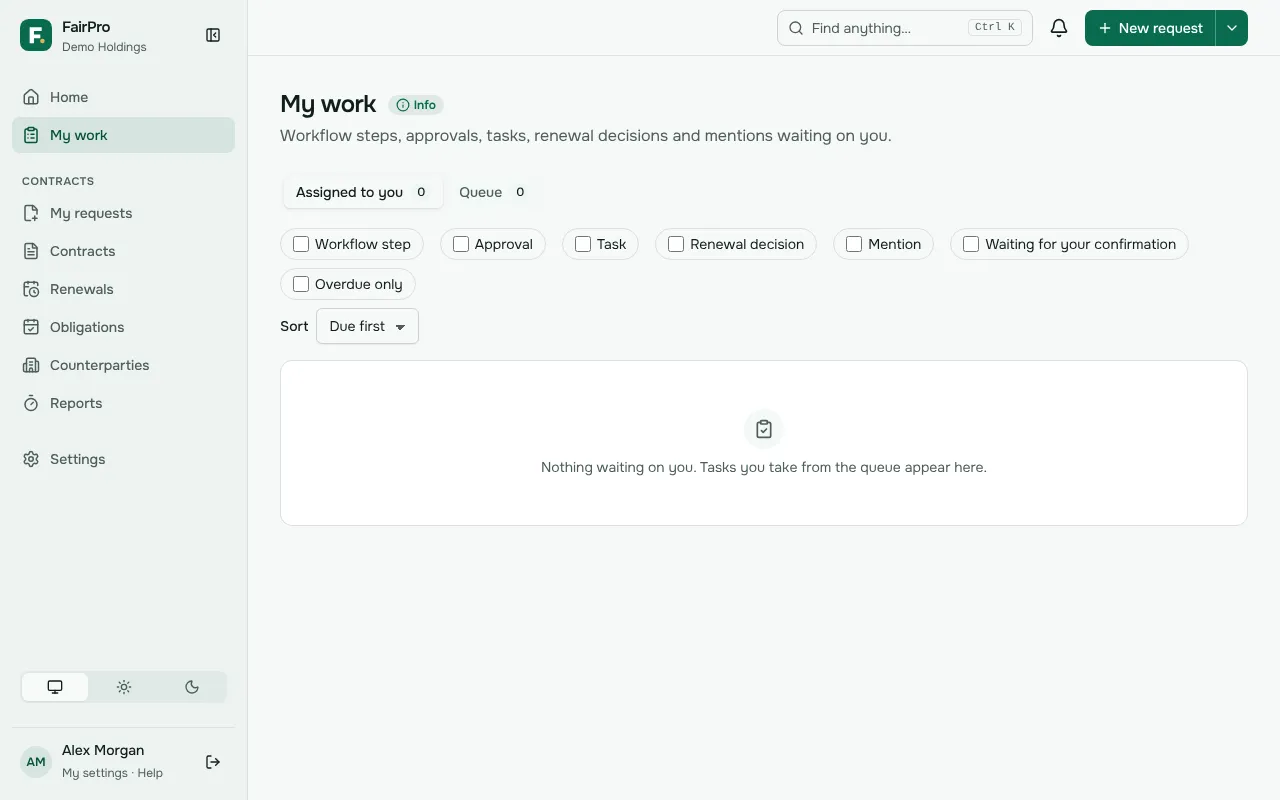
- Choose the kinds to show: Workflow step, Approval, Task, Renewal decision, Mention or Waiting for your confirmation. Tick Overdue only to see only what is late.
- Under Sort, choose Due first, Oldest first or By contract.
- Open an item to act on it. A task has Task completed, and a mention has Done.
Returned to you lists requests you made that came back to you with a reason. Open one, make the change and send it again.
The queue
Some workflow steps go to a team or a role instead of one person. They wait on the Queue tab for anyone in that team, or anyone with that role for the contract’s company or department.
- Open the Queue tab.
- Choose Take beside a step. It becomes yours alone and moves to Assigned to you.
Taking a step does not change its due time: the deadline belongs to the step, not to whoever holds it.
Tasks for yourself and others
Add a task on a contract’s page with Add a task. Give it a Task name, any Details, who it is For and when it is Due. The person must be able to see the contract.
The task shows in their My work, and FairPro reminds them on the due day and when it is overdue. Tasks you set for others are listed under Tasks you set for others on My work, where you can change or cancel them with Cancel task.
When you are away
Going on leave? Open Away from work and choose who looks after your workflow steps and approvals for the days you are away. Tasks people set for you, mentions and renewal decisions stay with you.
Your delegate must be able to see the contract. If not, the step stays with you.