Choose how FairPro tells you
Read notices under the bell, choose at once or a daily digest by email, and get them in Microsoft Teams or Slack too.
The bell
Everything FairPro tells you appears under the bell at the top of every page. The number on it counts what you have not read yet.
Choose the bell to see your latest notices, or open Notifications to see them all, newest first.
- Unread notices are in bold with a dot. Opening one marks it read and takes you to what it is about.
- Choose Mark all as read to clear the count.
- Choose Email settings to change how they reach your inbox.
By email
Every notice is also emailed to you, at once or in a daily digest. You choose for each kind.
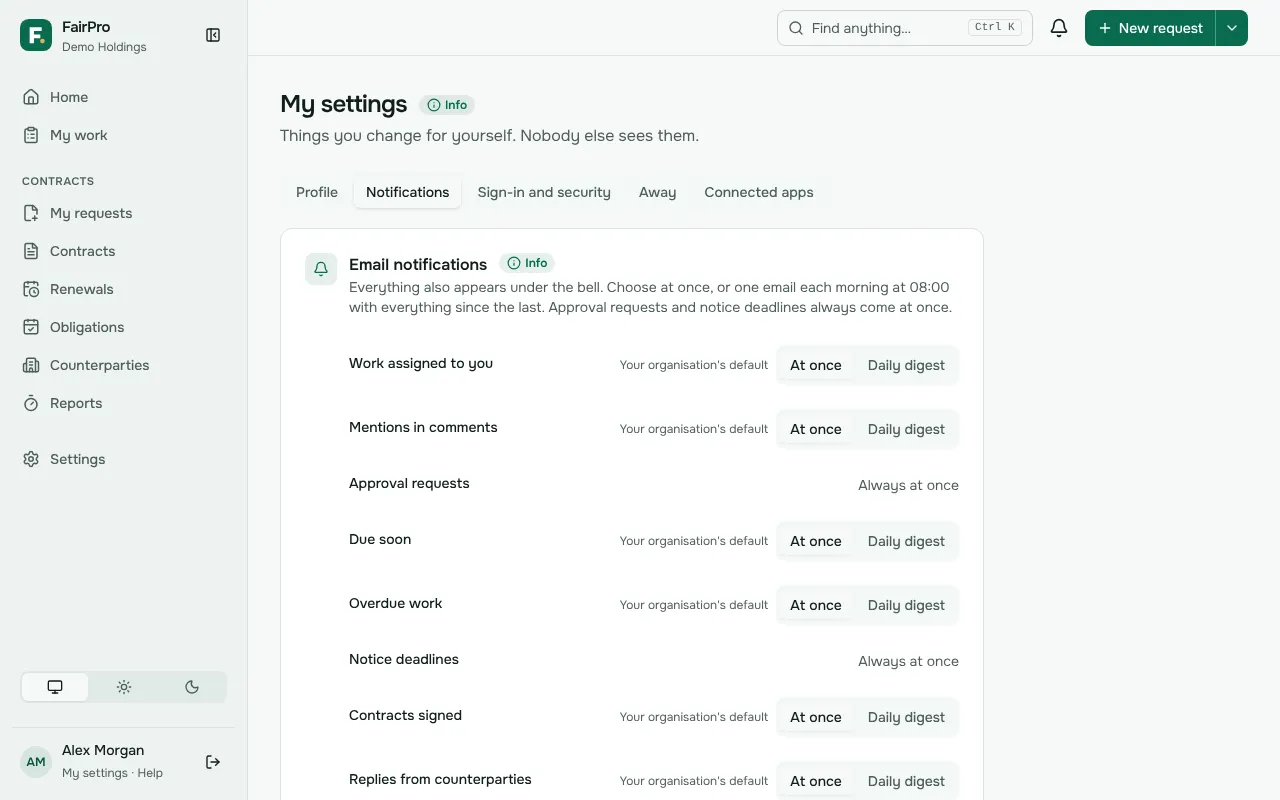
- Open My settings and the Notifications tab.
- Under Email notifications, choose At once or Daily digest for each kind of notice.
- Choose Save.
The daily digest is one email at 08:00 on your organisation’s clock, with everything since the last. Approval requests and notice deadlines always come at once, so nothing urgent waits until morning. Until you choose, each kind follows your organisation’s default, which is marked.
In Microsoft Teams or Slack
If your organisation has connected Teams or Slack, FairPro also sends you a direct message there, found by your email address.
- Open Teams and Slack from the Notifications tab of My settings.
- Tick the kinds of notice you want there, or untick everything to get none.
- Choose Save. Use my organisation’s choice goes back to your organisation’s selection.
If your organisation allows it, you can instead paste the Webhook address of a Slack channel or a Teams chat of your own. Choose Send a test message to check it works, and Stop sending to remove it.
Only a notice’s title, its heading and a link back to FairPro are posted to Teams or Slack. Everything else stays in FairPro.
Scheduled reports
If you may export reports, you can also have a report emailed to you every working day, every week or every month. Open Scheduled reports to set one up. The article on reports says more.
For administrators
Administrators set the organisation’s defaults: which kinds of notice come at once and which go in the daily digest. Change them on the Notifications tab of Settings. People’s own choices stay when you change the defaults.
To connect Teams or Slack for everyone, open the Teams, Slack and Office tab of Integrations, and tick which kinds of notice are sent there. A Slack administrator adds FairPro to the workspace. For Teams, you sign in with your work account and a Microsoft 365 administrator approves FairPro for the organisation.