Import contracts signed before FairPro
Upload signed files in bulk and review each record, or bring in your contract register from Excel or CSV.
Two ways to bring contracts in
Contracts signed before FairPro can come in two ways. Use either, or both.
- Files: upload the signed PDFs, Word files or scans. Each file becomes a record that a person checks before it is Active.
- A spreadsheet: bring in your contract register from Excel or CSV, one row a contract. Each row becomes an Active contract, and you add its signed copy later.
Either way you need permission to edit contract records for the company. In the default roles, the Contract manager and the Legal reviewer have it.
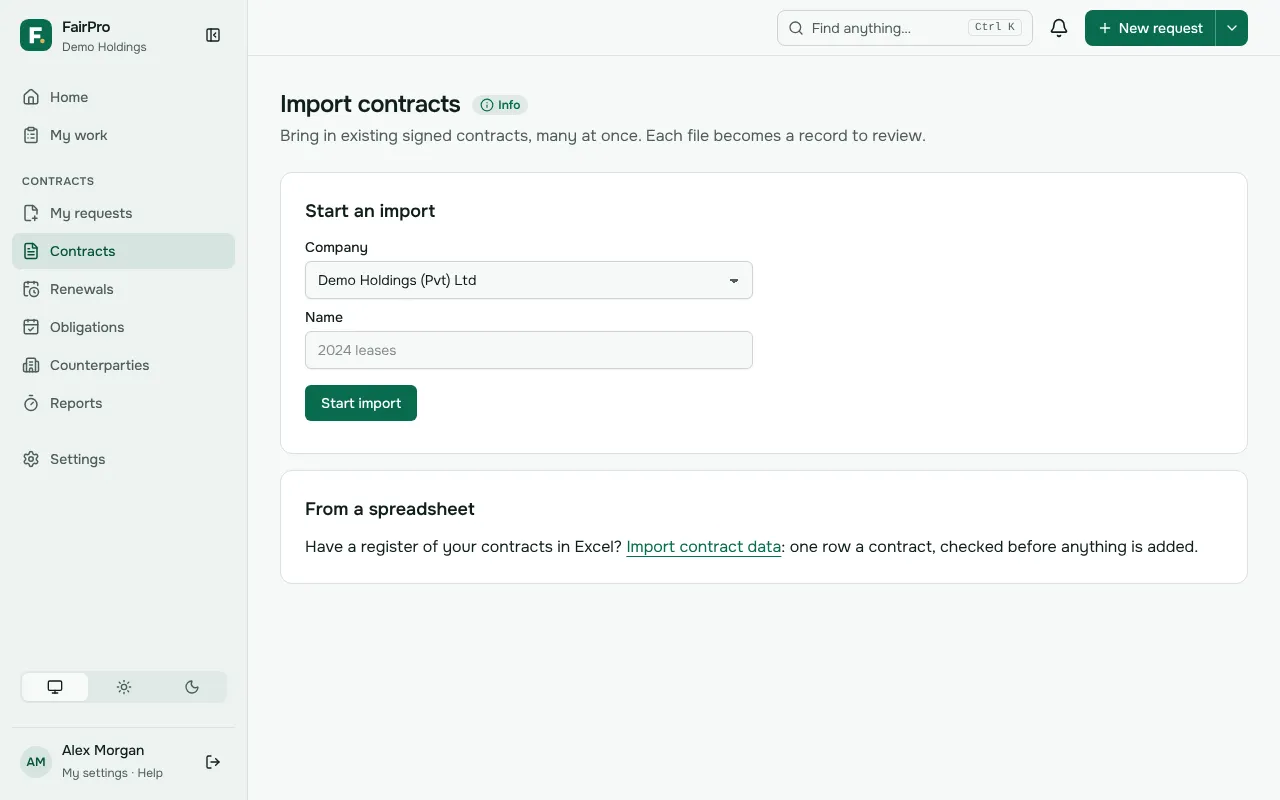
Import signed files
- On Contracts, choose Import, or open Import contracts.
- Under Start an import, choose the Company the contracts belong to and give the import a Name, such as 2024 leases. Choose Start import.
- Add the Contract files (PDF, Word or scans) and choose Import files.
- Wait for the report. It says, for each file, what happened.
- Choose Review them one by one to check each record.
An import holds up to 500 files, each up to 100 MB. Every file is recorded for the company you chose, so start a separate import for each company. Each record is titled from its file name: Office lease_2024.pdf becomes Office lease 2024.
What happens to each file
Every file is checked for malware. A blocked file, or one that did not arrive, leaves no record to review.
FairPro reads the text of PDF and Word files, so they can be searched. It does not read text from scans yet, so their details are filled in by hand.
If AI is on in your organisation’s AI settings, the AI proposes each record’s details from its text. Nothing is saved until a person confirms them.
Review and confirm
Imported records wait in the Imported, to review view on Contracts.
- Open a record. Check the details, such as the counterparty, the dates and the value, and fill in what is missing.
- Choose Confirm and make Active.
The contract keeps a mark that it was imported. Your imports on the Import contracts page lists the imports you started, so you can come back to one.
Import your contract register
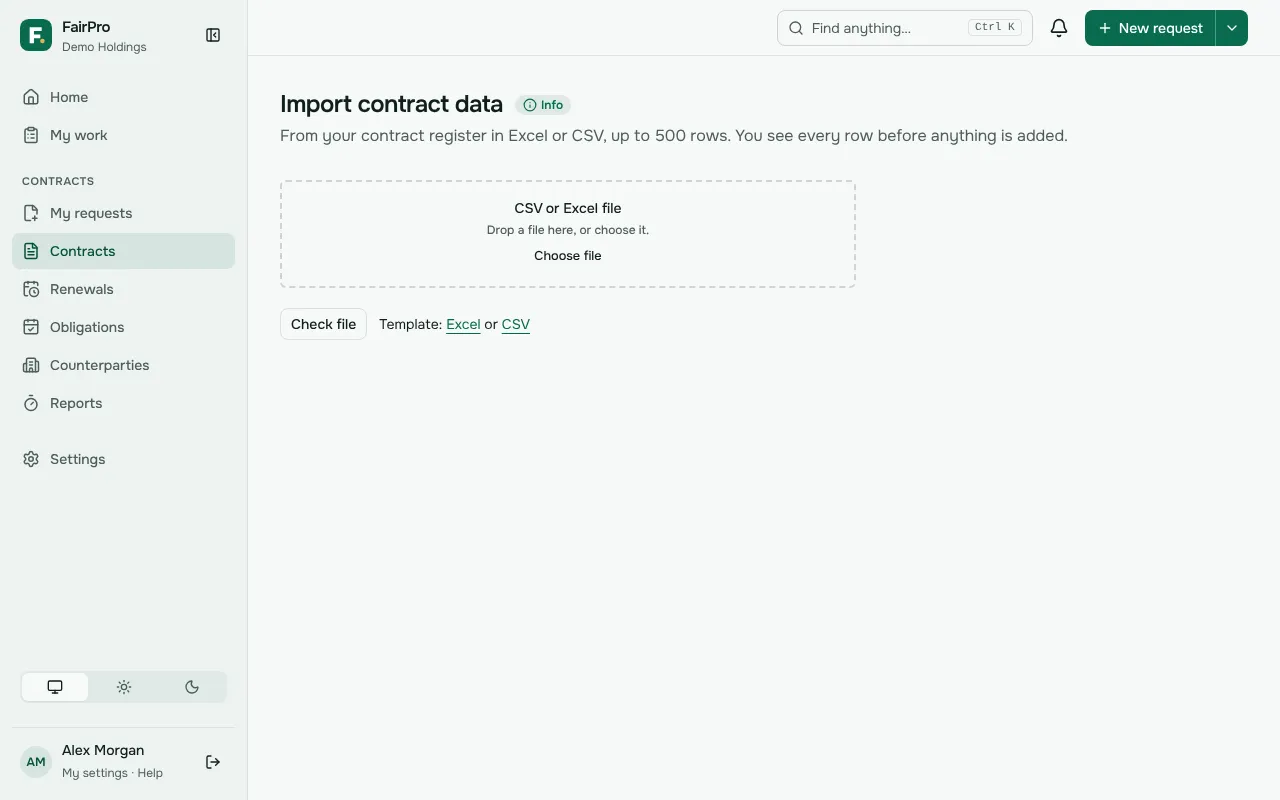
- Open Import contract data. You can reach it from From a spreadsheet on the Import contracts page.
- Download the template, as Excel or CSV, and fill it in. Title and Counterparty are needed; the other columns are optional.
- Under CSV or Excel file, choose your file and Check file.
- Read what happens to each row: Already in the register, Repeats an earlier row, Needs fixing or Will be added.
- Fix the file and check it again if any rows need fixing. Then choose Add, which shows how many new contracts will be added.
The counterparty must already be in the register, so import your counterparties first. One file holds up to 500 rows. Each row becomes an Active contract marked as imported; add the signed copy and any missing fields on each contract’s page.