Find a contract
Search and filter the contracts list, save your own views, ask in plain words and export what you find.
Search and filters
Open Contracts from the sidebar. It lists every contract you may see, across your companies.
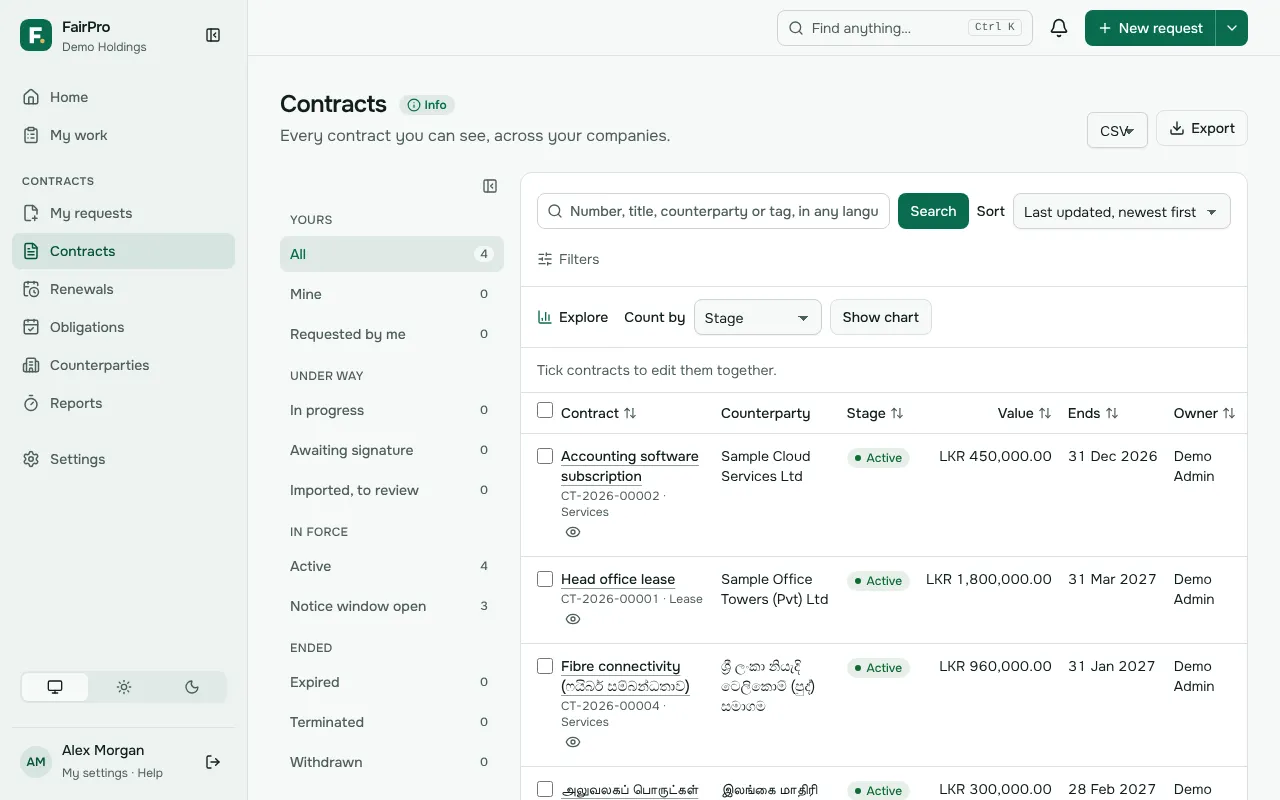
- Type in the search box and choose Search. It finds a contract by its number, title, counterparty or tag, in any language.
- Choose Filters to narrow the list by Stage, Company, Contract type, Counterparty, Owner, Tags or Value.
- Choose Clear all to start again.
Filters only narrow the list. They never show a contract your roles do not let you see, so two people can see different lists.
Views
The views on the left are the same for everyone: All, Mine, Requested by me, Active, Notice window open, Awaiting signature, In progress, Expired, Terminated, Withdrawn and Imported, to review.
Notice window open lists active contracts between their first renewal reminder and their notice deadline. It is a good place to start each week.
To keep your own filters:
- Filter the list the way you want it.
- Choose Save view and give the view a name.
- Tick Share with everyone to put it in everyone’s list. Each person still sees only the contracts they may see.
Your view appears under Saved views. Only the person who saved a view can delete it.
Ask in plain words
When your organisation has the assistant on, use Ask in plain words above the list. Type a question such as supplier contracts over 50,000 in approval and choose Ask.
The AI turns your question into the list’s filters. Check them, change them or save them as a view. The AI gets your question and the names of your filter choices, never your contracts.
Charts and quick previews
Choose Explore, then Count by to draw a chart of the contracts now in the list, by stage, type, company, counterparty, owner or month. Choose a bar to open those contracts. Show as a table gives the same numbers as a table.
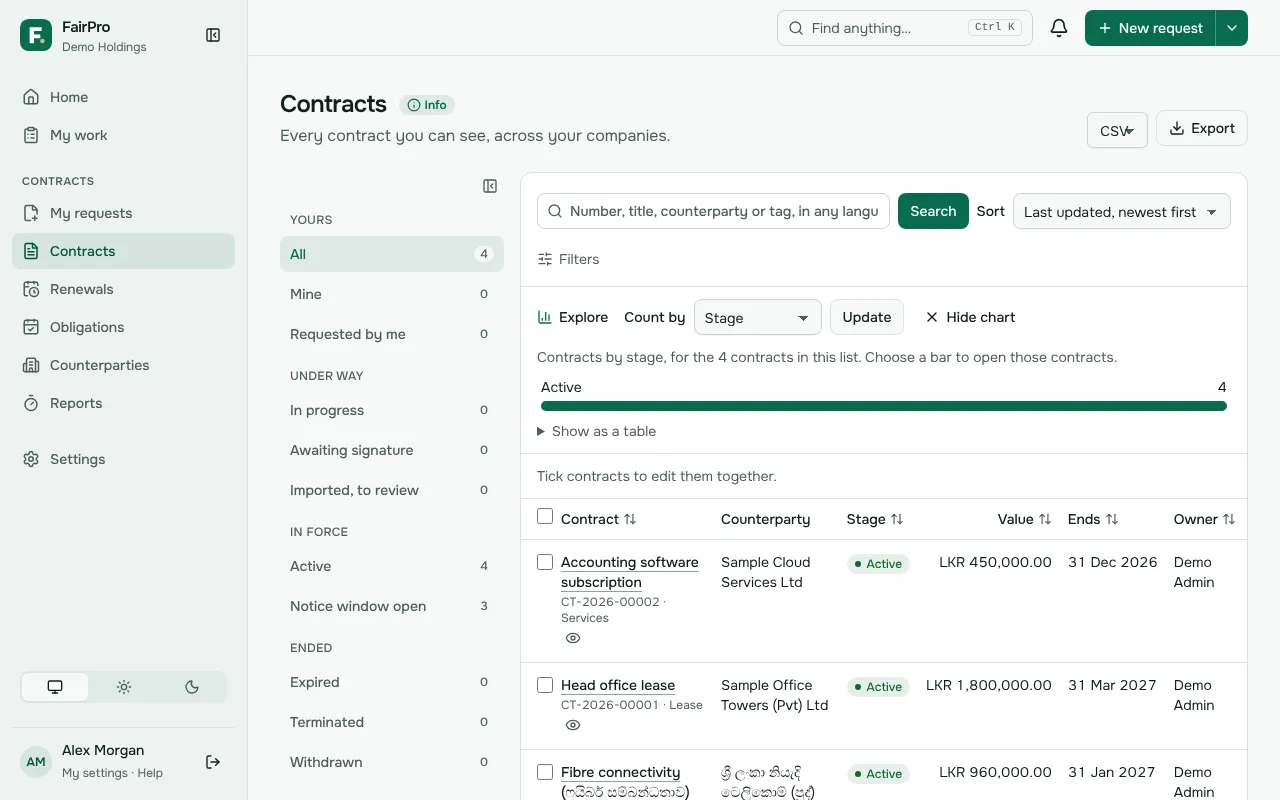
The eye beside a contract’s name opens a quick preview with its key details, documents and latest history. The name itself opens the contract’s page.
Export and change many at once
Choose Export to download every contract that matches your filters, up to 10,000, as CSV, Excel or PDF. A PDF shows the first 1,000. Each export is recorded in the audit log.
If you may change contract records, tick contracts in the list and open Edit selected contracts. Choose a new owner, tags to add or tags to remove. Each contract is checked as if you changed it on its own page, and the message says which were left as they were and why.