Onboard a counterparty with a questionnaire
Send a questionnaire, check the answers, decide and get the result signed, so a counterparty is approved before you contract with it.
Counterparty onboarding lets your organisation approve a supplier or another party before you contract with it. It is part of some plans. If your organisation does not have it, ask FairPro to turn it on.
Setting up a questionnaire
People who may create and edit templates and clauses set up questionnaires. In the default roles, that is the Legal administrator.
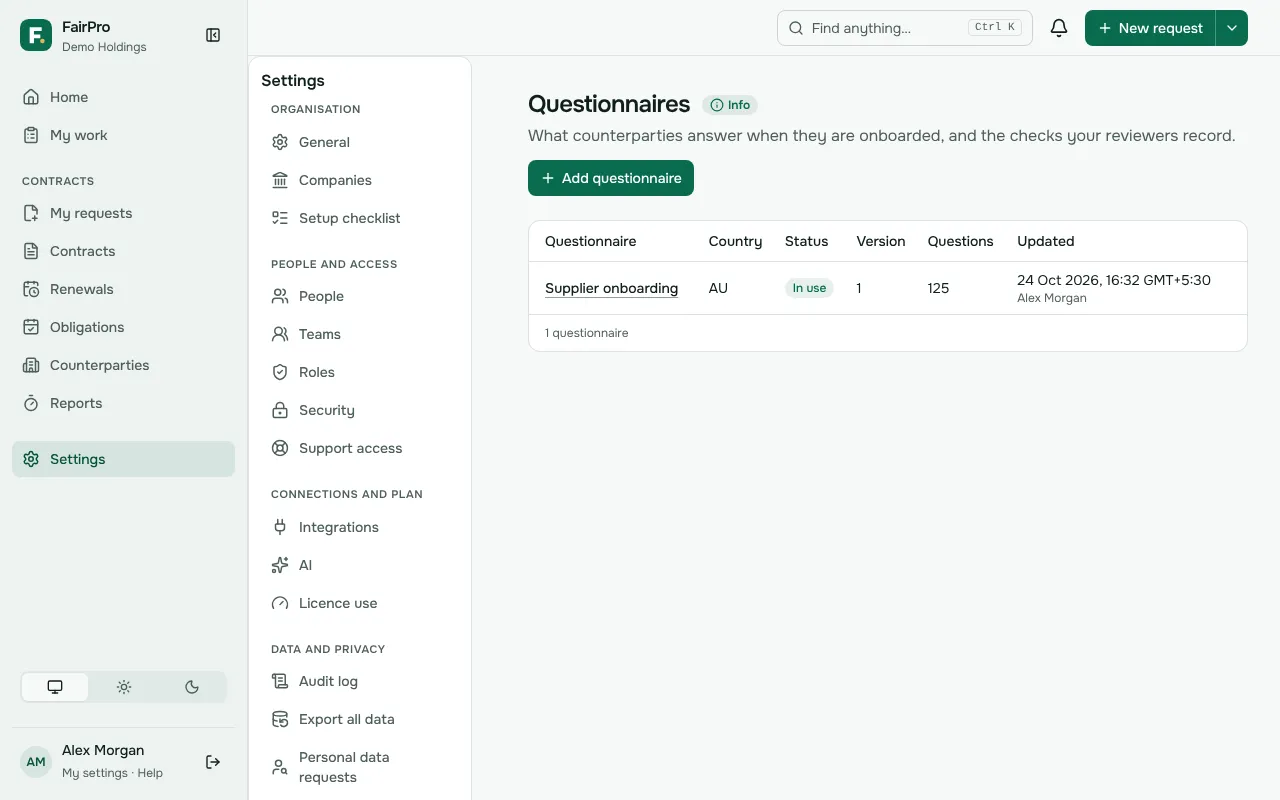
- Open Questionnaires and choose Add questionnaire.
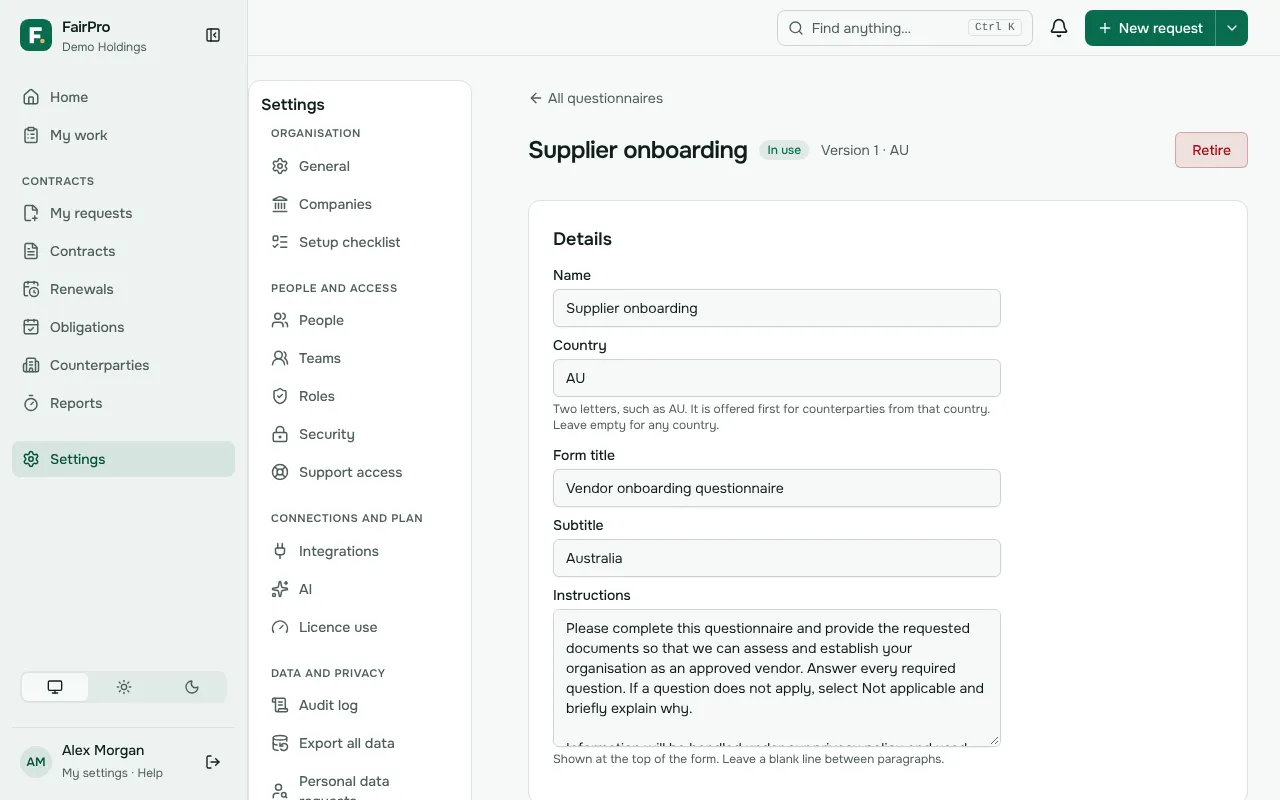
- Under Start from, pick FairPro’s questionnaire or a copy of one of yours, and give it a Name.
- On the questionnaire’s page, change the sections and questions. Select a question to change it, and use Preview the form to see it as the counterparty will.
- Add the Internal checks your reviewers record, and any Resources they check against.
- Choose Save as a new version.
FairPro’s questionnaire is a starting point. Have your lawyer review it before you send it.
Tick Bank or payment details on questions that ask for them. Those answers are shown only to people who verify counterparties, and are never sent to the AI or copied to the counterparty’s record.
To make a contract type need approved counterparties, open it under Contract types and set Counterparties must be approved to Before signing or Before the request (and signing).
Sending the questionnaire
You need permission to edit counterparties. In the default roles, that is the Contract manager and the Legal reviewer.
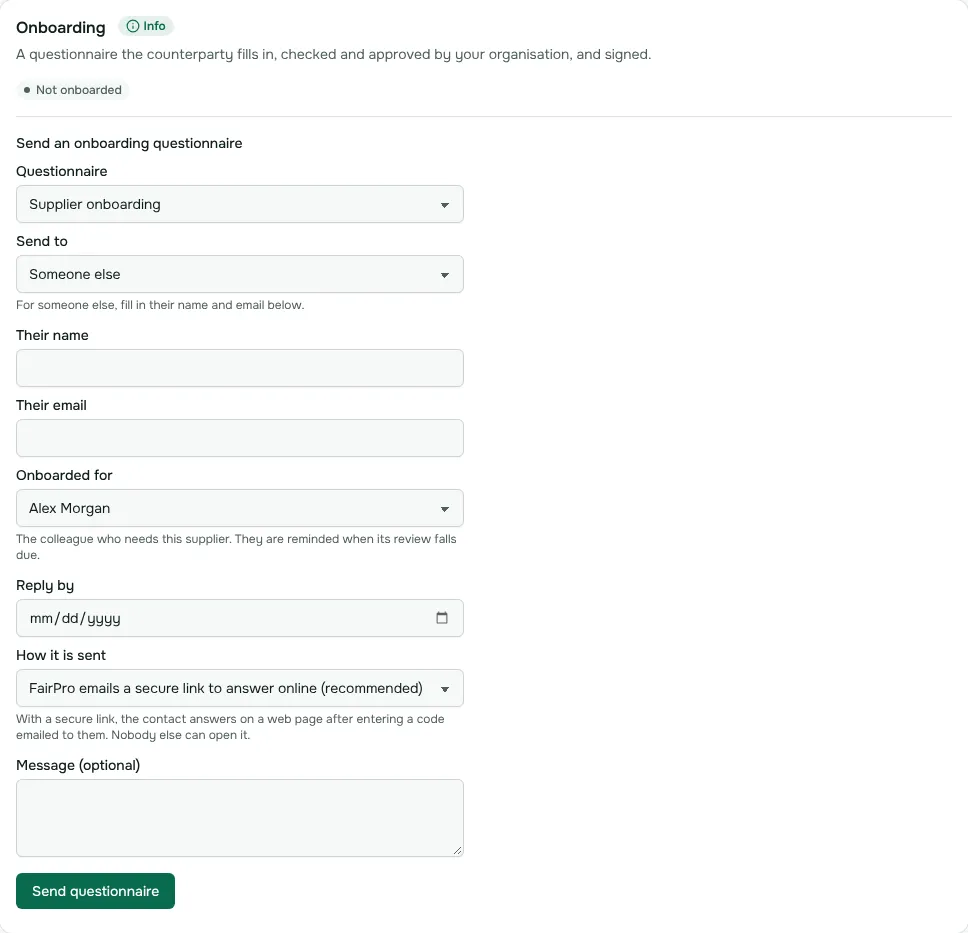
- Open the counterparty from Counterparties and go to Onboarding.
- Under Send an onboarding questionnaire, choose the Questionnaire and who to Send to. For someone who is not a contact yet, choose Someone else and fill in their name and email.
- Under Onboarded for, choose the colleague who needs this party. They are reminded when its review falls due.
- Choose How it is sent. With FairPro emails a secure link to answer online (recommended), the contact answers on a web page after entering a code emailed to them. FairPro can also email the Word form, or you can send it from your own email.
- Add a Reply by date and a message if you like, then choose Send questionnaire.
Whichever way it goes, the form is cleaned and checked for names from your organisation before it leaves.
Getting the answers in
Answers sent through the secure link arrive on the round by themselves. Otherwise:
- A reply by email lands under Replies from the counterparty on the round’s page. Choose File it to keep an attachment as the returned questionnaire or as one of the counterparty’s documents. Nothing is filed by itself.
- A Word file can be uploaded under Response. FairPro reads the answers from the form’s boxes.
- A PDF or a scan can be read with Read answers with AI, which fills only questions still empty and never bank details. You can also type the answers in.
If the link expired or never arrived, choose Send a new link. The old link stops working, and answers saved so far are kept.
Answers that need a look come first: required and blank, a choice marked for attention, or different from the counterparty’s record. Where answers differ, Update the counterparty’s details copies the ones you tick to the record.
Checking and deciding
You need permission to verify due diligence. In the default roles, that is the Legal reviewer.
- Under Internal assessment and verification, open each check and choose Pass, Review or N/A, with a note if useful.
- For a check that must be verified independently, such as bank details, fill in How it was verified and the Number or source used. Use one you found yourself, such as on the company’s website, never one from the questionnaire or an email.
- Choose Save checks.
- Under Approval, choose the Overall risk and the Decision, add any Conditions, and choose Save decision.
Left empty, Next review is 12 months away for low or medium risk, and 6 months for high risk. The rating is also added to the counterparty’s Risk tab.
A rejection ends the round at once. To change an answer after an approval, choose Reopen before it goes for signature. The checks stay.
Signing and the approval
An approval takes effect once the completed questionnaire is signed.
- By hand: download The completed document, get it signed, and upload it under Signed by hand.
- With DocuSign, if your organisation has connected it: choose who Signs for the counterparty and choose Send for signature. The counterparty signs first, then your approver. FairPro files the signed copy and DocuSign’s certificate when everyone has signed.
Once the signed copy is filed, the counterparty shows as Approved until its review date. Within 30 days of that date it shows Review due, and the colleague it was onboarded for is told. After the date it shows Review overdue. Send a new questionnaire to review it.