Add and look after counterparties
Add the companies and people you contract with, avoid duplicates, keep their registration documents current and import many at once from a spreadsheet.
Adding a counterparty
A counterparty is a company or person your contracts are with. Your whole organisation shares one register.
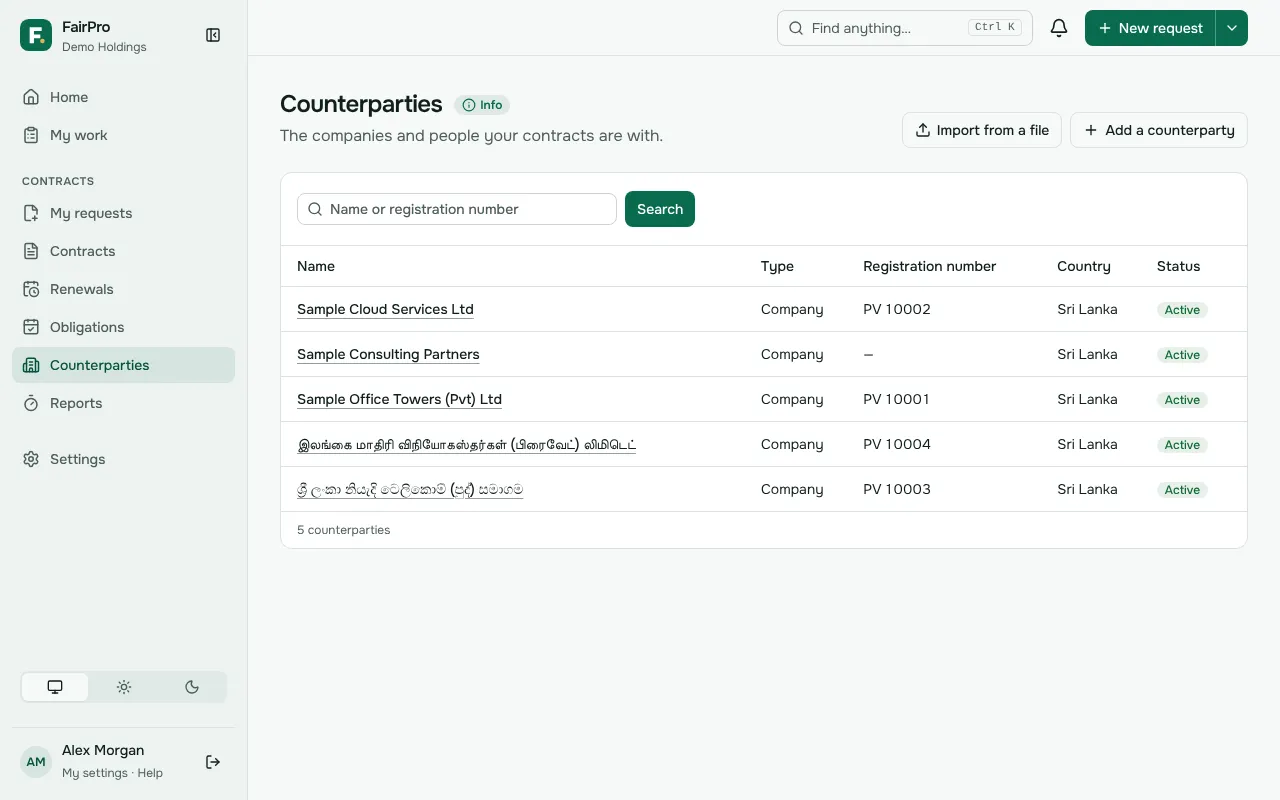
You can add one if your role lets you add counterparties. In the default roles, that is the Contract manager, the Legal reviewer and the Requester.
- Open Counterparties and choose Add a counterparty.
- Type the Legal name. This is the only detail you must give.
- Add what you know, such as Trading name, Type, Registration number, Country and Tags.
- Choose Add counterparty.
Country is picked from a list by name, with your own country, Australia, New Zealand and Sri Lanka at the top. Separate tags with commas, such as supplier, IT.
Duplicate checks and registration numbers
Before adding anyone, FairPro looks for them in the register. If it finds a likely match, it lists it with a link and the reason.
- Same registration number in the same country: FairPro always refuses to add it. Use the existing record instead. Spaces, dots, dashes and slashes are ignored, so PV 12345 and PV-12345 match.
- Similar name: FairPro ignores case, punctuation and words such as Pvt, Private, Ltd and Limited. So ABC (Pvt) Ltd matches A.B.C. Private Limited.
If a similar name really is a different party, tick None of these: it is a different party and choose Add counterparty again. If the match is marked inactive, make that one active again rather than adding it twice.
Add the registration number whenever you have it. It is the surest way to catch a duplicate.
Active and inactive
Make a counterparty inactive when you no longer deal with it.
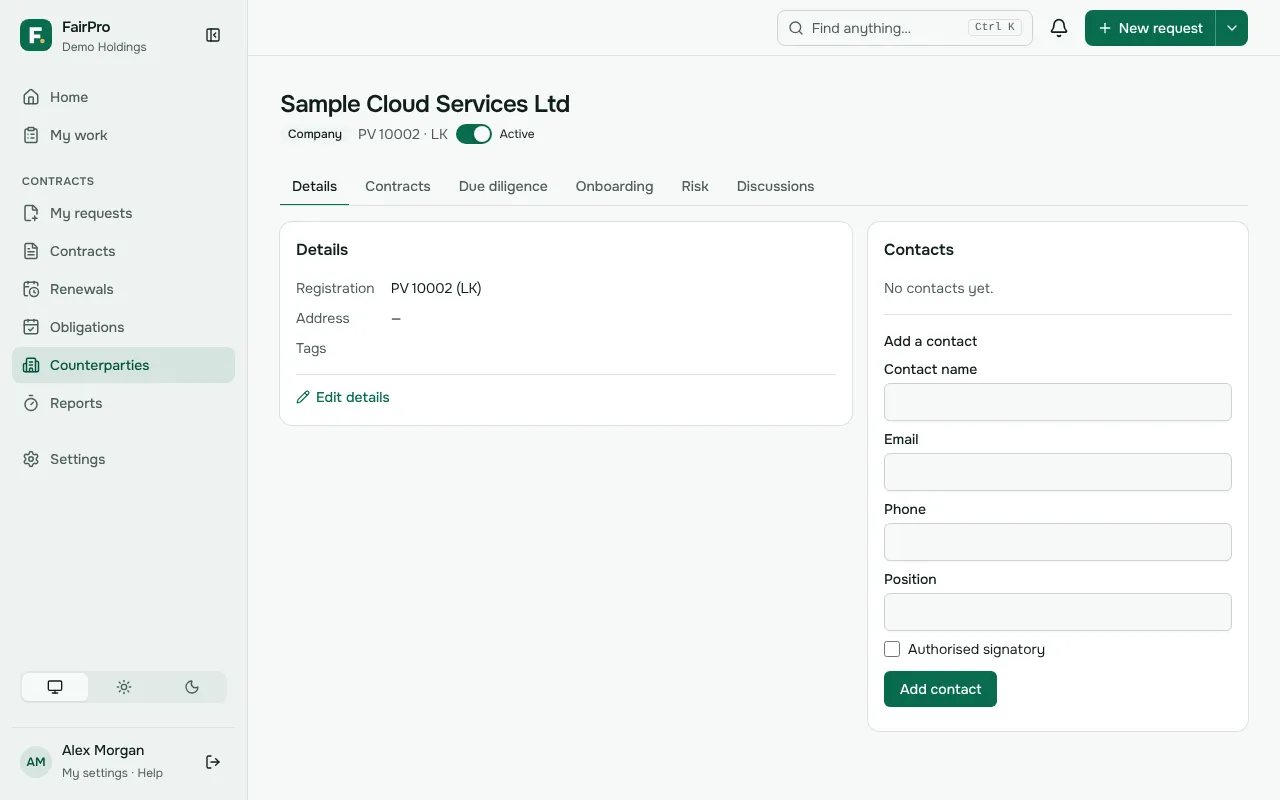
- Find it in Counterparties, or open its page.
- Turn off the switch beside its name, so it reads Inactive. Turn it on again to make it Active.
New requests and contracts stop offering an inactive counterparty. Nothing is removed: contracts that already have it keep it, marked Inactive. Only people who may edit counterparties see the switch. In the default roles, that is the Contract manager and the Legal reviewer. Everyone else sees the status only.
Due-diligence documents
Keep documents such as a business registration certificate, Form 1, Form 20 or a VAT registration on the counterparty. A request whose checklist asks for one reuses a current copy instead of asking again.
To add one, you need permission to edit counterparties.
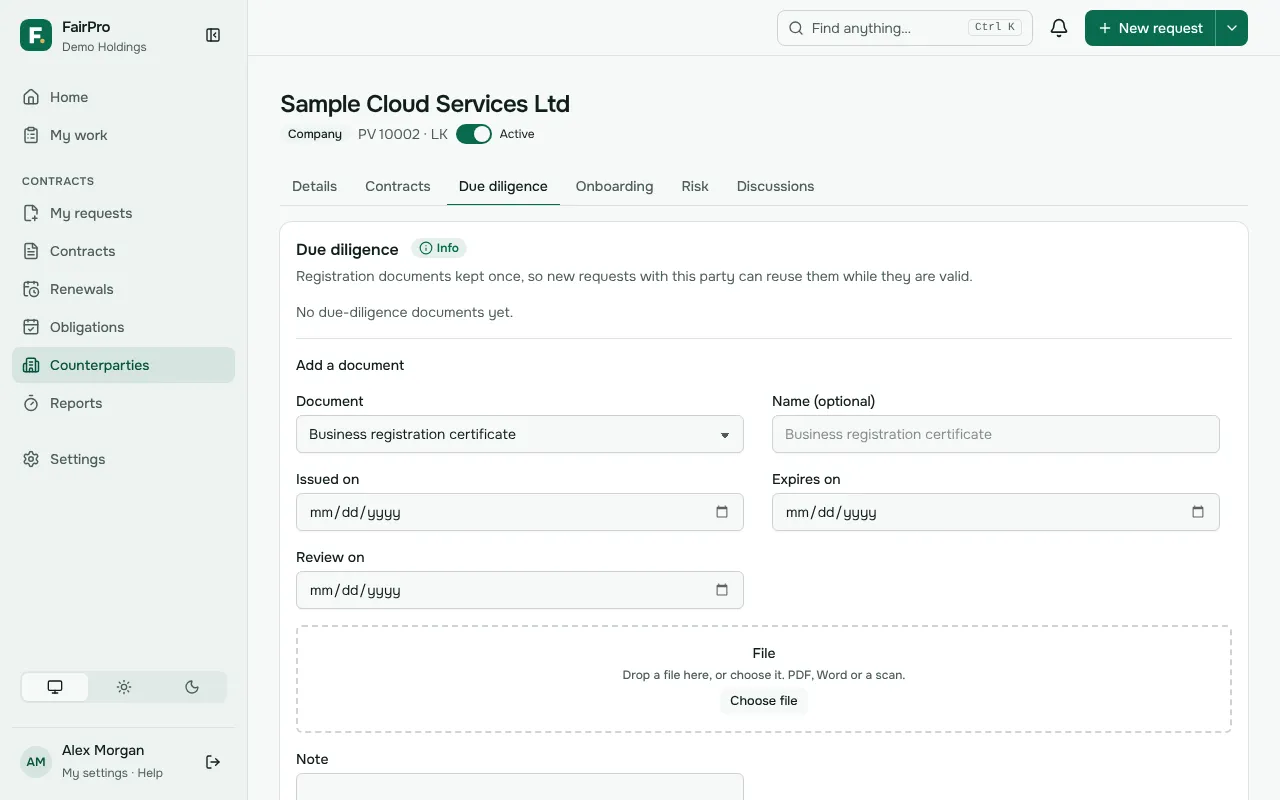
- Open the counterparty and go to Due diligence.
- Under Add a document, choose the Document kind. For Other document, give it a Name.
- Add the dates you have: Issued on, Expires on and Review on.
- Choose the File. It can be a PDF, a Word file or a scan.
- Choose Add document. FairPro checks the file for viruses before keeping it.
Each document shows its state:
- Valid: in date.
- Expiring soon: within 30 days of its expiry date.
- Review due: its review date has come.
- Expired: past its expiry date. An expired document does not count for a request’s checklist.
Add a renewed document as a new copy. The older one moves under Replaced by a newer copy.
Verifying a document
Someone who may verify documents can check a copy against the original and choose Verify. In the default roles, only the Legal reviewer can do this.
Pre-contract discussions
Use a discussion for talks with a counterparty before anyone asks for a contract. It keeps notes and files in one place, and only the people you invite can see it.
- Open the counterparty and go to Pre-contract discussions, or open Pre-contract discussions.
- Under Open a discussion, give it a Title, choose the Kind of contract it is about and, if you like, say what it is about.
- Choose the people to invite. Hold Ctrl or Cmd to choose more than one. You can invite more people later.
- Choose Open discussion.
On the discussion’s page, add notes and files. A note never changes once added. FairPro checks each file for viruses before keeping it.
When a contract is wanted, choose Turn into a request. The request form starts with the discussion’s details and files. When you submit it, the discussion closes and is kept with the request’s contract.
If no contract is coming, choose Close discussion. A closed discussion is kept as long as its contract type keeps withdrawn contracts, then reviewed for deletion under Settings, Retention. People who manage retention see its title and dates there, never its notes or files.
Bulk import
To add many counterparties at once, use a spreadsheet saved as CSV. You need permission to both add and edit counterparties, so Requesters cannot import.
- On Counterparties, choose Import from a file.
- Choose Download the template and fill it in. Only Legal name is needed. A blank Country means your organisation’s own country.
- Choose your file and select Check file. Nothing is added yet.
- Read what happens to each row: Will be added, Already in the register, Repeats an earlier row or Needs fixing.
- Fix any problems in your file and check it again.
- Choose the button that adds them, such as Add 12 new counterparties.
A file can hold up to 2,000 rows and 900 KB. Split a bigger register into parts. Rows already in the register are never added. If one really is a different party, add it by hand.