Draft a contract and send it to the other side
Start the draft from a template or a Word file, then edit it in Word. Share a clean copy with the other side and compare their revised file.
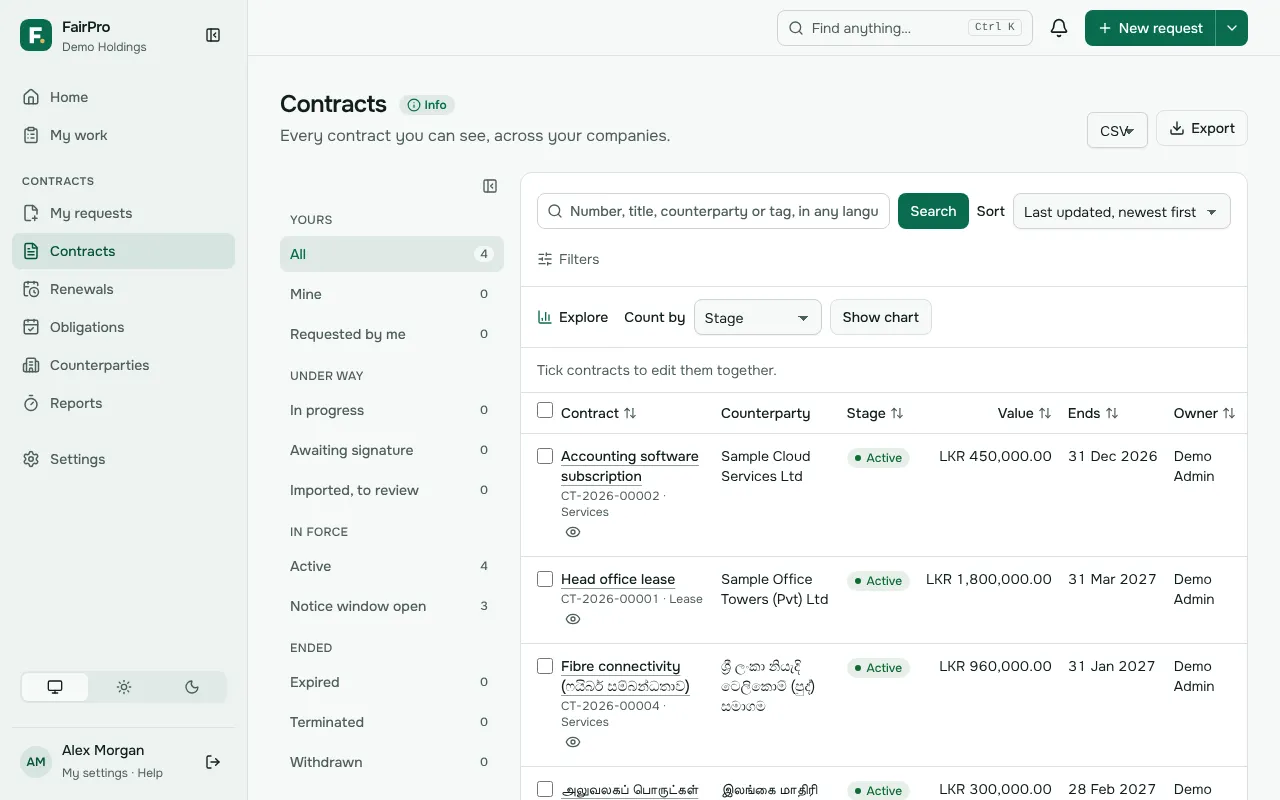
You draft a contract on its own page, on the Documents tab. You can work on it when your roles let you edit contracts. While a workflow step is assigned to a person, only that person can change it. Find the contract in My work or Contracts.
The contract page has six tabs: Documents, Edit details, Comments, Obligations, Other details and AI checks. Comments and AI checks show how many are still open. The workflow stays on the side whichever tab is open.
Start the draft
Before there is a draft, you have up to three ways to start one.
- Use a template shows when the request asked for a template. Choose Preview the draft, check the details filled in, then choose Create the draft.
- Upload an existing draft takes a file you already have. Drop it in, keep What is it? as The main agreement, and choose Upload.
- Draft with AI shows only if you may use the AI assistant.
A Word draft made from a template, or the first Word draft uploaded in Drafting, opens straight away in FairPro’s editor when your organisation has it.
Edit in Word
- Choose Check out to edit in Word. Others are warned that you have it, but they are not locked out.
- Choose Download Word and edit the file.
- Upload it with What is it? set to A new version of the document. This checks it back in.
Choose Check in if you finish without uploading a change.
Sections and versions
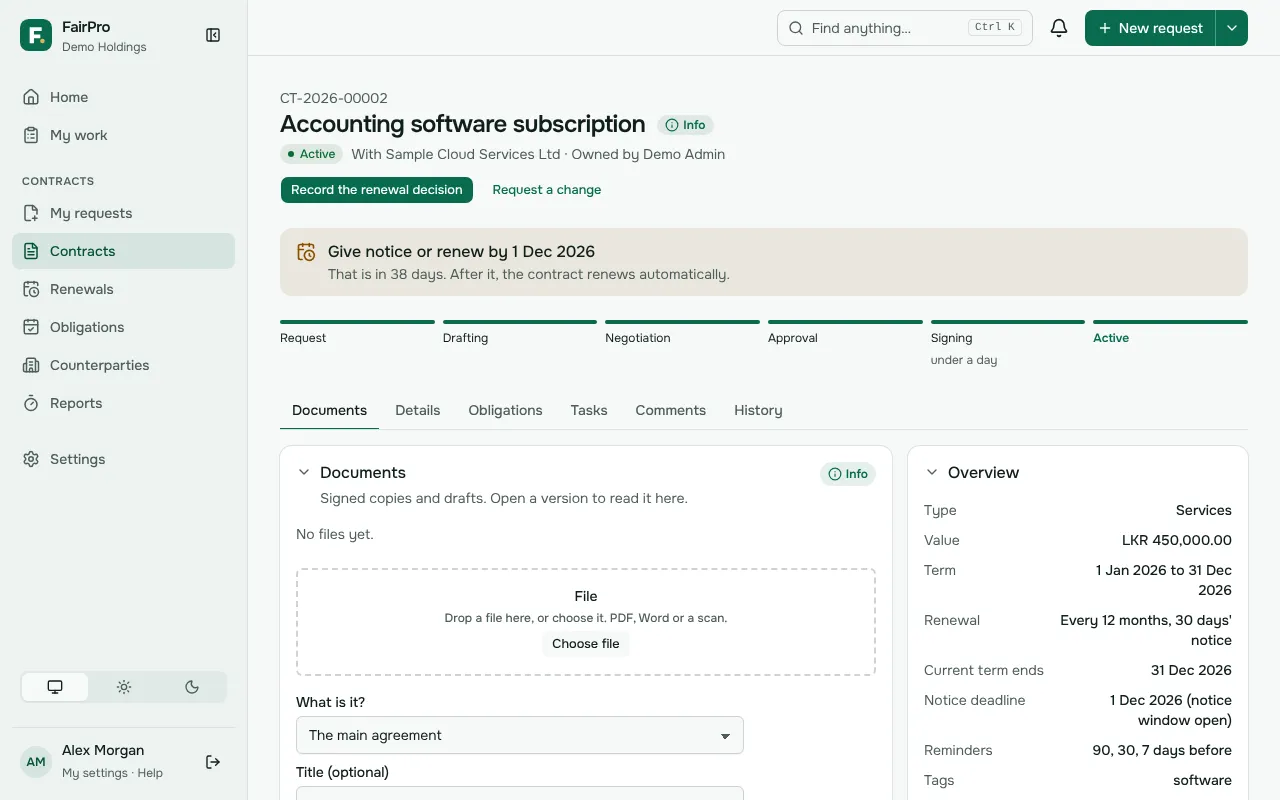
The Documents tab has three sections, each in its own shade:
- Current draft: the newest version of each document that forms the contract.
- Previous versions: the earlier versions, folded away until you open them.
- Supporting documents: quotes, proposals and other files that are not part of the contract to be signed.
Move or remove a document
If you uploaded a file to the wrong section, choose Move to supporting documents or Move to the draft under it.
If you uploaded it by mistake, choose Remove, then Remove document. It leaves the contract, and the contract’s history records who removed it. FairPro keeps the file.
You can move or remove documents in Request, Drafting and Negotiation, when you may change the contract. Not while someone else has the document checked out or open in the editor. Once the contract goes for approval, its documents stay as they are.
A wrong file uploaded as a new version of a document cannot be removed on its own. Restore the earlier version (below) so it is the current one again.
Versions and compare
Every save and every upload adds a new version.
- Compare with version shows what changed from the version before. Compare versions lets you choose any two.
- Name this version or restore it lets you label a version, or restore an earlier one as a new version.
Share a copy with the other side
You need permission to share contracts outside your organisation. By default the Legal reviewer has it. A copy can go out while the contract is in Drafting or Negotiation, and it is made from a Word file.
- Choose Share a copy with the other side.
- Choose the Word version.
- Under Tracked changes, choose Accept them into a clean copy, or Keep them as tracked changes, shown as made by us.
- Choose Prepare external copy. FairPro removes comments, hidden text and document properties that name people.
- Read the Leak check. If the copy still names anyone in your organisation, it cannot be sent. Remove the name in Word, upload the file as a new version and prepare the copy again. If it passed, you can Download the external copy to check it.
- Under Send to, tick the counterparty’s contacts. Only contacts with an email address are listed. Check the Subject and Message.
- Choose Send from FairPro. Or choose Open in my email: the copy downloads, and you attach it to the email yourself.
If sending from FairPro is not part of your organisation’s plan, use Open in my email. Either way the copy is kept, and the contract moves to Negotiation.
Get their revised file back
When the other side replies with their changes, open the contract. On the Documents tab, the upload box offers their reply first.
- Drop their file in File. Word or PDF works.
- Keep What is it? as Their reply, and choose Upload.
FairPro saves it as a new version and compares it with the copy you sent. Changes they made without tracking are highlighted.
When the wording is agreed, the person holding the drafting step chooses Task completed. In the standard workflow that step is Draft and review, and the contract then goes for approval. The counterparty must be on the contract’s details before it leaves Drafting.