Get a contract signed
Record a contract signed on paper, or send it with DocuSign if your organisation has connected it. Either way the contract then becomes Active.
Once every approver needed has approved, the contract moves to the Signing stage. It stays there until its signing is recorded. Then it becomes Active.
Before you start
The Signing card on the contract’s page holds everything for this stage. It has two tabs, E-signature (DocuSign) and On paper, and opens on the way your contract type is normally signed. What you see there depends on your roles. By default the Legal reviewer can send a contract for signature and record a signing.
Only your company’s authorised signatories can sign for you. Administrators list them, with any signing limit, on the company’s page under Companies. If the card says the company has no authorised signatories, ask an administrator to add them.
Sign outside FairPro
Use this for a contract signed in wet ink, or attested by a notary. In the Signing card, open On paper. It takes you through three steps.
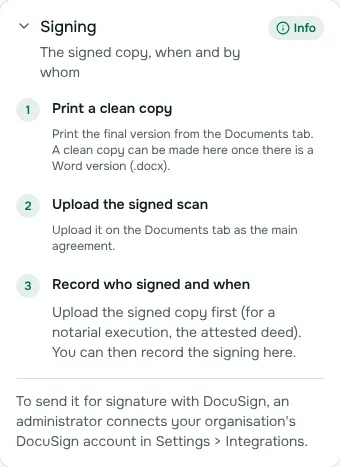
- Print a clean copy. Choose Download a clean copy to sign. It is a PDF of the Word version with every tracked change accepted and comments removed, so check the changes are agreed first. Have it signed.
- Upload the signed scan. Drop it in the box and choose Upload. It is kept as the next version of the main agreement. You can also upload it on the Documents tab with What is it? set to The signed copy (signed on paper): the Signing card then opens on it.
- Record who signed and when. Under How it was signed, choose In wet ink or Attested by a notary, before two witnesses.
- Check the Signed copy (the scan you just uploaded is chosen) and the Date signed. The date cannot be in the future.
- Under Signed for us by, tick who signed for your company.
- Under Signed for the other side by, type their names, one per line.
- For a notary, also fill in the Notary, the Deed number and at least two Witnesses.
- Choose Record signing, or Record attestation for a notary.
Your contract type may say how its contracts are normally signed. If you choose another way, FairPro asks why.
When FairPro asks you to check
FairPro may stop and ask before it records the signing.
- For wet ink, if the signed copy has a different number of pages from the version before it, check that no page is missing. Then tick I checked it: record the signing anyway. For a Word final, FairPro counts the pages of the PDF it makes of it, the copy you print.
- If someone signed above their signing limit, FairPro asks why it was signed anyway. Your reason is kept with the signing record.
- If something your organisation’s approvals cover changed after approval, the signing is not recorded. The contract goes back for approval first.
Send with DocuSign
You can use DocuSign only when your organisation has connected its account. An administrator does that on Integrations. Until then the card shows only On paper, with a note saying so.
To send, you need permission both to send for signature and to share contracts outside your organisation.
On the E-signature tab, choose Send for signature. It opens four steps; Back keeps what you chose.
- Version. Choose the Version to send. It must be a Word file. If it still has tracked changes, FairPro says how many and whose. DocuSign’s copy accepts all of them, so review them, then tick I have reviewed the tracked changes and they are agreed.
- Who signs. Tick your signatories and the other side’s contacts. Anyone whose signing limit does not cover the contract’s value cannot be chosen, and says why. Only contacts with an email address are listed. If someone else signs, choose Add someone to sign for us or Add someone to sign for the other side. These show only if you may add signatories or contacts.
- Order and message. Choose who signs first, and add a Message (optional) if you like.
- Check and send. Check what is about to go, then choose Send for signature.
DocuSign gets a clean external copy, checked for leaks like any copy that leaves your organisation. The card then shows each signer and where they stand.
Only one envelope can be out at a time. To stop it, choose Void envelope, give a reason and confirm. The contract stays in Signing. If anyone declines, the contract also stays in Signing, and the sender and the owner are told.
Amendments, renewals, extensions and terminations cannot be sent with DocuSign yet. Record their signing outside FairPro.
When the contract becomes Active
After you record the signing, the contract becomes Active. With DocuSign this happens on its own: when everyone has signed, FairPro files the signed copy and DocuSign’s certificate, and tells the sender, the owner and the requester.
The signed copy is then locked, and the signing record shows who signed, when and how. To change an Active contract later, ask for a renewal, amendment, extension or termination from Requests.