Stay ahead of renewals
See which notice deadlines are coming up, get reminded in time, record what you decided and draft a notice of non-renewal. You can also add the dates to your own calendar.
Notice deadlines and end dates
A signed contract has two dates that matter. The end date is when the current term finishes. The notice deadline is the last day to tell the other side you will not renew.
The notice deadline is usually the one to watch. FairPro works it out as the end of the term minus the notice period. If that falls on a day off or a public holiday, it moves back to the working day before.
A contract with no notice period is tracked by its end date. A contract that renews automatically shows the end of its current term, then moves on to the next term once that date passes.
You set these under Dates and renewal when you record or edit a contract: End date and Contract notice period (days).
The Renewals page
Open Renewals from the sidebar. It lists signed contracts, soonest first.
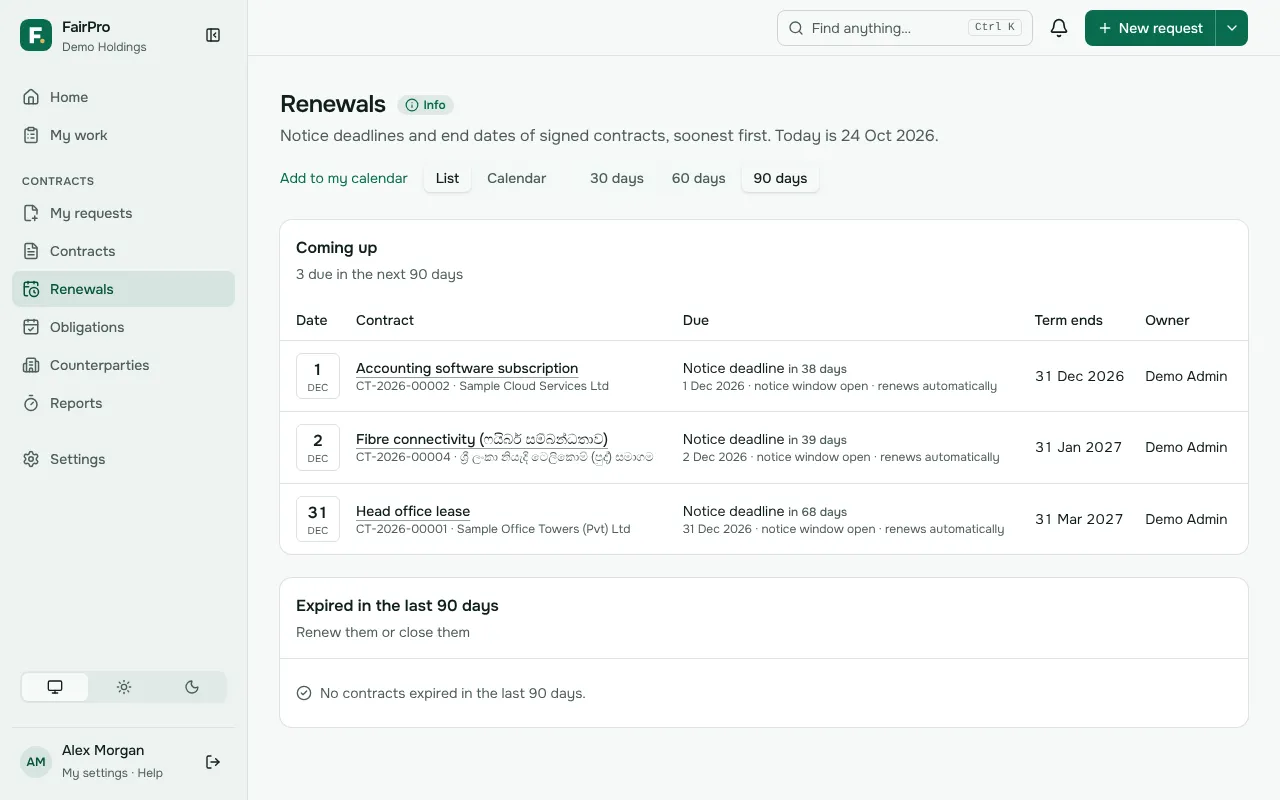
- Choose 30 days, 60 days or 90 days to set how far ahead to look.
- Read Coming up. Each row says whether the date is a Notice deadline or an End date, and shows any decision recorded.
- Check Expired in the last 90 days for contracts that ended recently.
- Choose Calendar to see the dates by month, or List to go back.
You see only contracts your roles let you see. On Contracts, the Notice window open view lists active contracts between their first reminder and their notice deadline.
Reminders
FairPro emails the contract’s owner at each reminder point before the notice deadline, or before the end date when there is no notice to give. By default that is 90, 30 and 7 days before.
To change them for one contract, edit Remind before (days) under Dates and renewal. Leave them empty and the usual 90, 30 and 7 apply.
To remind other people too, open the contract’s Details tab and, in the Renewal decision card under Also reminded, choose a person and Add. They get the same reminders as the owner. Their reminder names the contract by number only, in case they may not see it. The owner, or anyone who may edit the contract, can add or Remove people.
The reminders stop once someone records a decision. If nothing is decided 7 days before the date, FairPro tells the owner’s line manager once. An administrator can name someone to be told as well, under Renewals left undecided in Settings; that person is also told when the owner has no line manager. The owner also sees a Renewal decision item in My work from the first reminder until a decision is recorded, or until 30 days after the date has passed.
Recording the renewal decision
The contract’s owner, or anyone who may edit the contract, can record the decision.
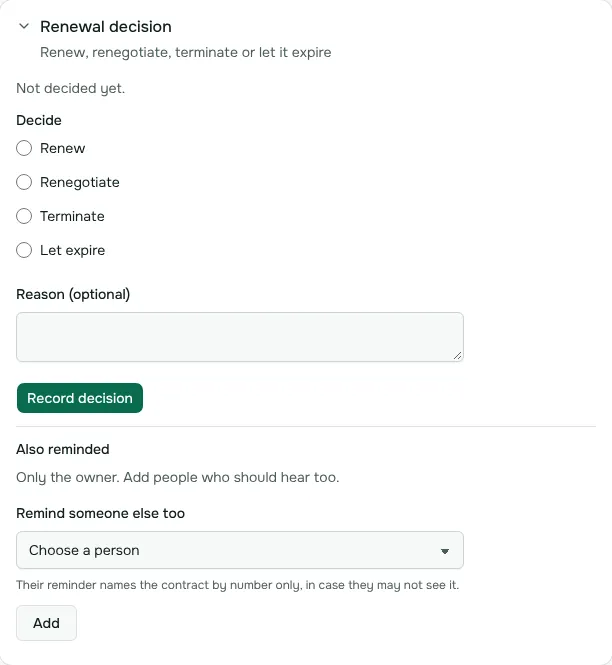
- Open the contract. When a date is close, a banner offers Record the renewal decision.
- On the Other details tab, find the Renewal decision card.
- Choose Renew, Renegotiate, Terminate or Let expire.
- Add a note in Reason (optional) if it helps.
- Choose Record decision.
Recording a decision stops the reminders. It does not change the contract by itself. Each term has its own decision.
The notice of non-renewal
After Terminate or Let expire, the card offers Draft the notice of non-renewal. You see it only if you may edit the contract, the contract is active and its term has not ended yet.
- If you know it, type the clause in Clause notice is given under (optional), such as clause 14.2.
- Choose Draft the notice of non-renewal.
- Find the Word file in the contract’s documents. Fill in the blanks for your letterhead, the address for notices and the signatory.
- Check it, sign it and send it the way the contract says notices are given. FairPro never sends it for you.
Your calendar feed
See your notice deadlines and end dates in Outlook, Google Calendar or Apple Calendar.
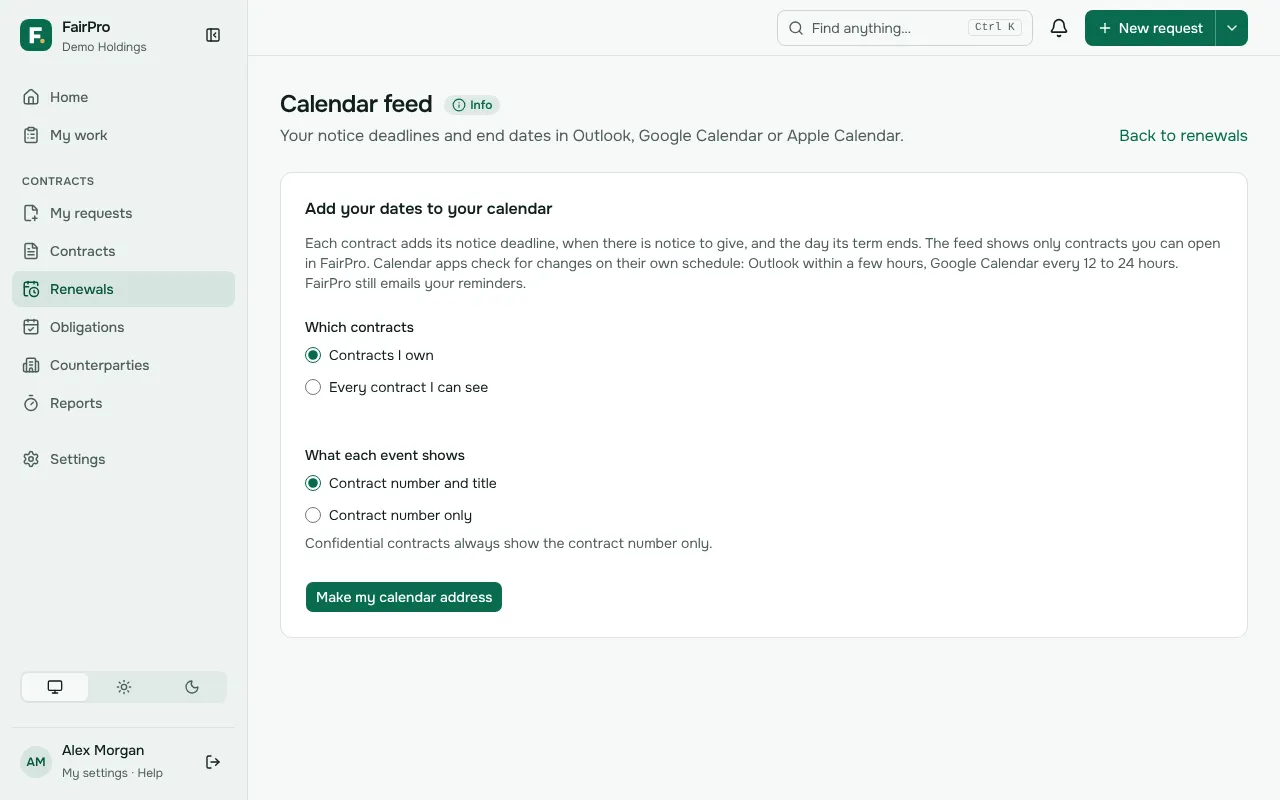
- On Renewals, choose Add to my calendar.
- Under Which contracts, choose Contracts I own or Every contract I can see.
- Under What each event shows, choose Contract number and title or Contract number only. Pick number only if other people can see your calendar.
- Choose Make my calendar address, then add it to your calendar app with the links shown, or Copy it and paste it in.
The address is shown only once. Keep it private: anyone with it can see these dates. If you lose it, choose Get a new address and the old one stops working at once. To stop the feed, choose Turn off the feed on Calendar feed.
Terminating a contract
Ask for a termination from Requests, or record one already signed from the contract’s Changes card. Say how it ends (By notice, By agreement or For breach), why, and when it takes effect. The reason stays inside your organisation.
For a termination by notice, FairPro checks the date it takes effect against the contract’s notice period. If notice has not gone yet, it counts from today. A date inside the notice period is refused; choose By agreement if both sides agreed to end sooner.
On the termination’s page, the Termination card offers:
- Draft the termination notice: FairPro writes the letter from the record and adds it to the termination’s documents as a Word file. Fill in the blanks, sign it and send it as the contract says notices are given. FairPro never sends it for you.
- Proof of delivery: add the receipt, tracking page or acknowledgement to the termination’s documents, then record when and how the notice was delivered and choose that file as the proof.
Once the termination is signed, the contract becomes Terminated on the date it takes effect, by itself.