Connect Copilot, Claude or another AI app
Let an AI app such as Microsoft 365 Copilot or Claude work with FairPro as you. It sees only what you may see, and nothing changes until you confirm it.
You can connect an AI app, such as Microsoft 365 Copilot or Claude, so it can work with FairPro as you. The app never gets more access than you have.
What an administrator must do first
Before anyone can connect an app, an administrator who may change roles gives the Connect agents permission to a role.
- Open Roles and open the role, or make a new one.
- Under AI, tick Connect agents.
- Choose the save button, such as Save Legal reviewer. Then give the role to the right people under People.
No default role has it, so nobody can connect an app until you give it.
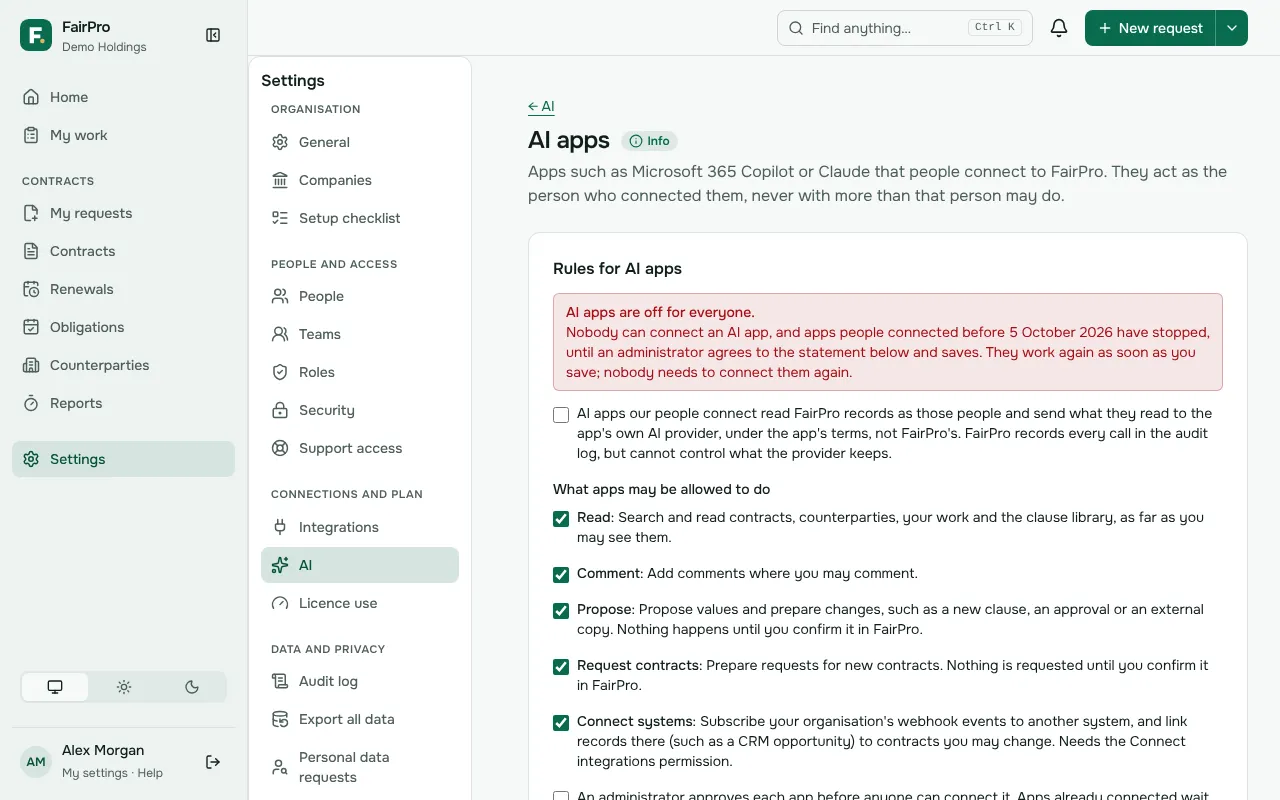
An administrator who may change AI settings then turns AI apps on for the organisation:
- Open AI apps, also linked from AI.
- Read the statement under Rules for AI apps and tick it. It says that an app sends what it reads to its own AI provider, under the provider’s terms.
- Choose what apps may be allowed to do, whether an administrator approves each app first, and whether apps may read confidential contracts.
- Choose Save.
Organisations that used AI apps before 5 October 2026: apps people connected earlier stop working until an administrator does this. People do not need to connect them again; they work as soon as you save.
For Microsoft 365 Copilot, FairPro’s agent also has to be set up in your organisation’s Microsoft 365 by your Microsoft 365 administrator. Other apps, such as Claude, connect to the address you use for FairPro followed by /api/mcp.
If your organisation asks for an authenticator code at sign-in, set that under Security. People then give the code when they connect.
Connecting an app
You always start from the AI app, not from FairPro.
- In the AI app, add FairPro as a connector or agent.
- The app sends you to FairPro. Sign in as usual.
- On Connect an AI app to FairPro, check the app’s name and the address it will send you back to. Continue only if you started this from that app. Any app can give itself a name.
- Under What it may do, tick what you allow.
- Choose Allow. Choose Deny if anything looks wrong.
If your roles do not include Connect agents, or your organisation’s rules keep the app out, FairPro says why and offers Go back to the app. Ask your administrator.
Your organisation’s rules
Administrators set these on AI apps. FairPro checks them on every request, so a change applies at once to apps already connected.
- What apps may be allowed to do. The connect page offers only these, and an app connected earlier loses anything no longer allowed.
- Approval. When an administrator approves each app first, a new app waits under Apps approved, blocked or waiting until someone chooses Approve. Choosing Block disconnects that app for everyone.
- Confidential contracts. Unless allowed, apps never see confidential contracts or anything about them, even when you may. FairPro’s own assistant is not affected.
Read, Comment, Propose and Request contracts
- Read is ticked to start. It lets the app search and read contracts, counterparties, your work and the clause library, as far as you may see them.
- Comment lets the app suggest internal comments on contracts where you may comment. Counterparties never see these comments.
- Propose lets the app suggest values and prepare changes, such as a new clause, an approval or an external copy.
- Request contracts lets the app prepare a request to your legal team for a new contract.
Apps connected before 7 October 2026 with Propose could already prepare requests. They were given Request contracts too, so they do exactly what they did before. To stop an app asking for contracts, disconnect it and connect it again without Request contracts. An administrator can also take Request contracts away from every app under AI apps.
What an app can prepare
With your permissions and the matching choice, an app can:
- Start a request for a new contract (Request contracts). You confirm it, or open it in the request form to finish it.
- Fill in a contract’s record from its documents, such as the end date or notice period (Propose). You accept or reject each value.
- Check a contract against the playbook (Read). The app reads the contract and the playbook and tells you where they differ; if you want a change, it prepares it as a tracked change (Propose).
- Prepare an external copy of a contract’s Word document for the other side (Propose), if you may share contracts externally. When you confirm, FairPro removes comments, hidden text and your colleagues’ names, then checks no one in your organisation is still named, as on the External copy page. If someone is still named, nothing is made. Nothing is sent: open the copy from the confirmation to download it, or send it from the External copy page.
FairPro checks your permissions again on every request. If your access shrinks, so does the app’s. Everything it does is in the audit log, shown as you, via the app.
Confirming what an app prepares
An app can never change anything by itself. When it suggests a comment or prepares a change, the item waits for you in My work, marked Waiting for your confirmation. FairPro also tells you on the bell and by email, so you hear even while you are working in the app. An action you do not confirm expires.
- Open the item. The Confirm an action page says which app prepared it and shows what it will do.
- Choose Confirm to do it now, as you. If it lists several suggestions, untick any you do not want and choose Accept ticked.
- Choose Decline if you do not want it. Nothing is done.
Each item expires after 24 hours. If it is still needed, ask the app again. Confirming works only if you still have permission at that moment.
Disconnecting an app
- Go to My settings.
- Under Connected AI apps, choose See or disconnect AI apps.
- Find the app and choose Disconnect.
The app’s next request is refused. To use it again, connect it from the app.
A connection also stops if you lose the Connect agents permission, if you are deactivated, or if your organisation starts asking for an authenticator code after you connected. Connect it again to carry on.
Administrators see every connected app under Connected now on AI apps, and can disconnect one, or every app at once with Disconnect every app.
The assistant inside FairPro
FairPro also has its own assistant. You do not need to connect anything to use it. It appears as an Assistant button at the top of each page when two things are true. Your organisation has turned on In-app assistant under AI, and one of your roles has the Use assistant permission. Like a connected app, it sees only what you may see, and nothing changes until you confirm it.
Hidden text in documents
A Word file can hold text a reader does not see: hidden, white or tiny. FairPro finds it and gives it to apps and the assistant marked as hidden text, so they point it out to you and never act on it.
Connected tools
If your plan includes Connected tools, an administrator can add your organisation’s own MCP servers, such as a CRM or a ticketing system, under Connected tools. The assistant can then use the tools the administrator switched on.
- If a server asks each person to sign in, sign in under My settings, Connected tools.
- A tool that only looks things up may run at once, if the administrator allowed it. Any other tool waits in My work until you confirm it.
- What a server answers is its own words. The assistant treats it as information, never as instructions.
- If a server’s list of tools changes, its tools switch off until an administrator checks them again.