Get a contract approved
See who approves a contract and how to approve, ask for changes or reject it. Set a delegate so approvals keep moving while you are away.
Before a contract can be signed, the right people approve it. FairPro works out who that is from the contract’s company, business unit and, if your organisation turns it on, its value.
When a contract goes to Approval
A contract reaches the Approval stage when the drafting step is finished. In the standard workflow, the person holding Draft and review chooses Task completed. The counterparty must be on the contract first.
An approval given to a named person appears in their My work, and they are told. One given to a role waits in a queue, as described below. The contract’s page shows the step and who has it.
Who approves
Approvers are people with the Approver role. A role can cover one company, one business unit, or the whole organisation.
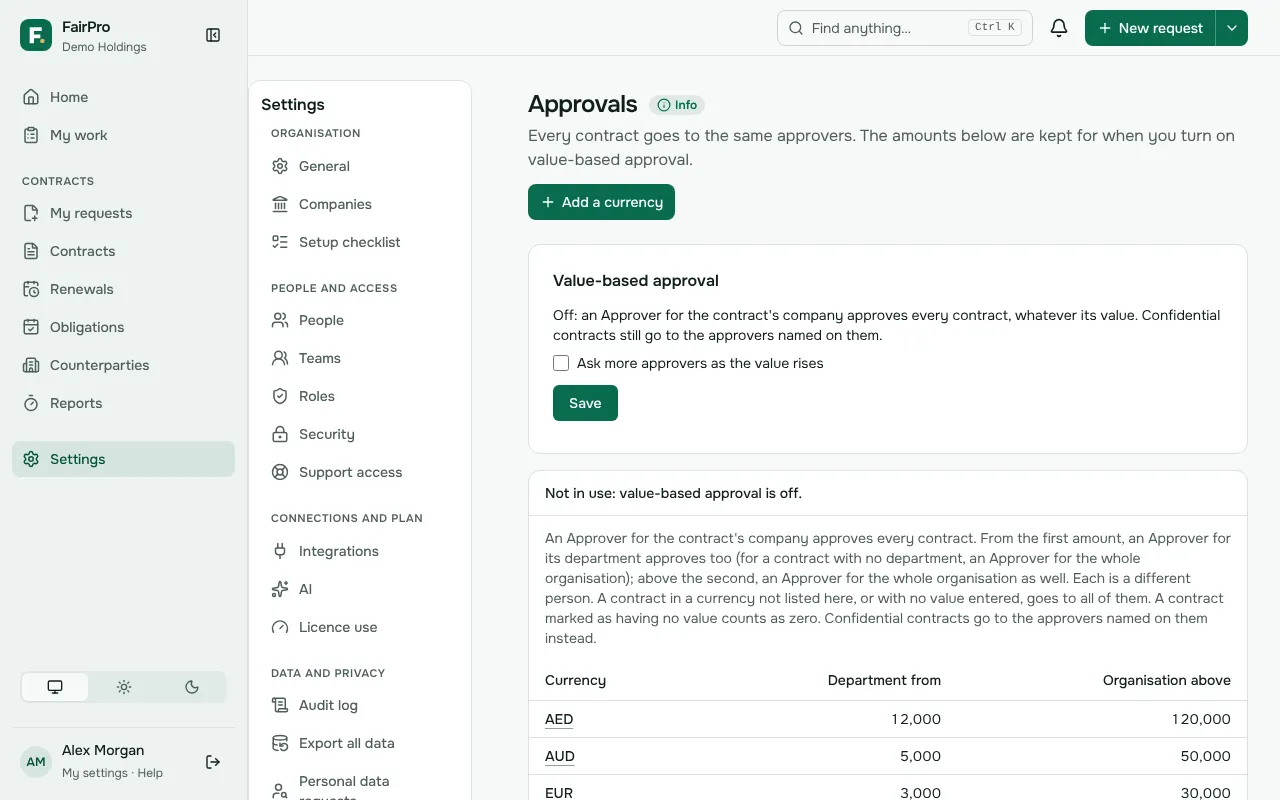
- With Value-based approval off, the default, an Approver for the contract’s company approves every contract, whatever its value.
- With it on, FairPro asks more people as the value rises. An Approver for the company always approves. From the first amount, an Approver for the business unit approves too. Above the second amount, an Approver for the whole organisation approves as well.
- Each currency has its own amounts, because FairPro does not convert currencies.
The approval matrix also sets the order. Together means everyone is asked at once, and the contract moves on when all have approved. One after another, company first starts with the company’s Approver, and each next approver is asked only after the one before approves.
Administrators set all of this on Approvals. If you don’t see that page, your roles don’t include it.
Approve a contract
An approval often goes to a role, not a named person. It then waits in the Queue tab of My work for anyone with that role.
- If the approval is in your queue, choose Take. It is now yours alone.
- Open the contract and choose Open the approval summary. It shows the key terms, the files and any scope of work written on the request, any earlier decisions and any comments the team flagged for approvers.
- Choose Approve.
If you don’t see Approve, check that the task is yours. A role with a value limit lower than the contract’s value cannot approve it.
When every approver needed has approved, the contract moves to Signing.
A contract cannot leave Approval until its value, dates and any other fields required by then are filled in. The summary lists what is missing. If something is, choose Ask for changes rather than approving.
Ask for changes or reject
- Choose Reject or ask for changes.
- Under Decision, choose Ask for changes or Reject.
- Write a Reason. It is required.
- Choose Send decision.
Either way the contract goes back to the drafting step, usually to the person who drafted it, with your reason. The other approvers’ open tasks close. Approvals already given count no longer, so the contract goes through approval again after it is fixed.
Approving again after a change
An approval is given for the contract as it was. If a part your organisation chose changes after someone approved it, that approval no longer counts. The approval step opens again with the same people.
The parts that can ask again are the value or currency, the parties, the dates, renewal and notice period, and the documents. By default a change to any of them does. A new version of any file counts as a document change.
When you approve again, the approval summary shows Changed since the last approval and lists what changed.
When you are away
Set a delegate before you go, under Away from work in My settings.
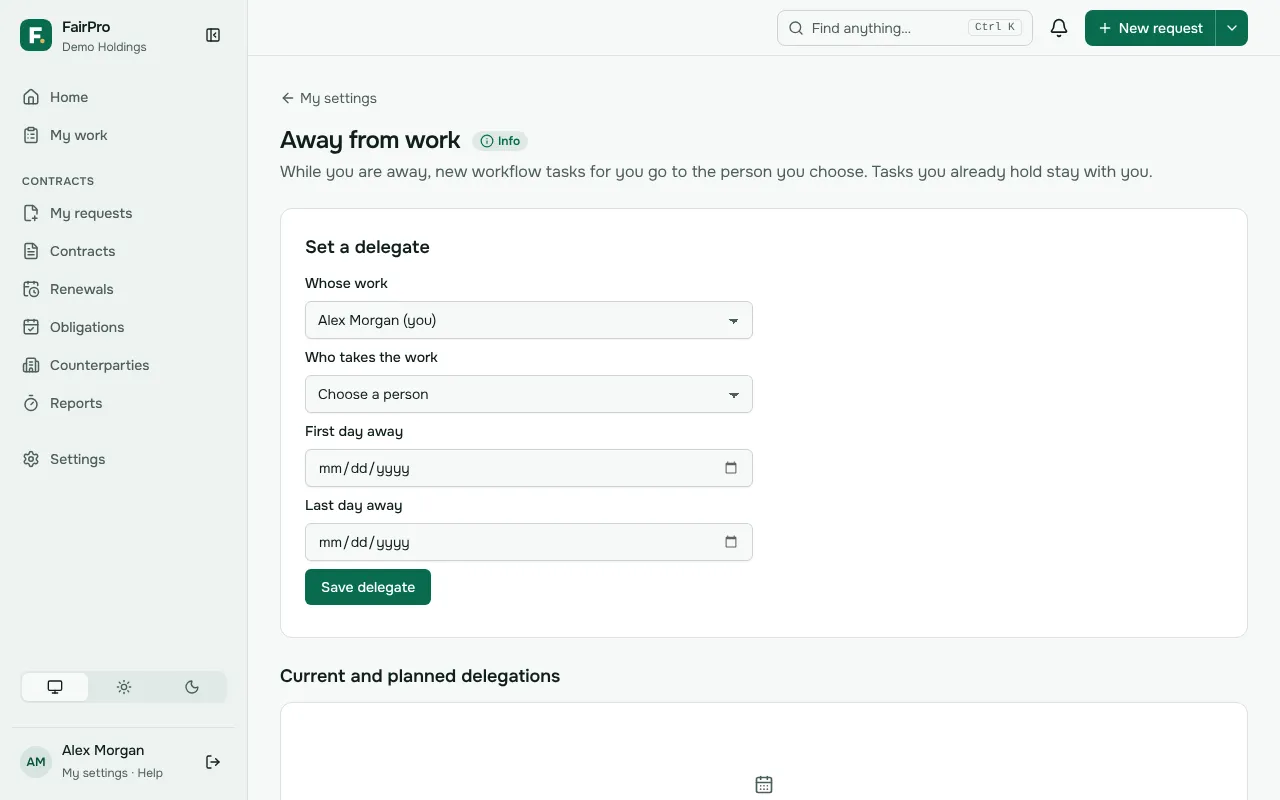
- Choose Who takes the work.
- Enter your First day away and Last day away.
- Choose Save delegate.
Workflow steps and approvals that open for you on those days go to your delegate. Tasks you already hold stay with you. Your delegate must be able to see the contract, or the task stays with you. If your delegate is away too, the work follows their delegate.
A delegation cannot be edited. Remove it and add a new one. Contract managers can set a delegate for someone else, such as a colleague who is off sick.